Until today, letting an AI assistant into your Notez notes meant a small ritual: generate a key, paste it into a config file, restart the client, hope you copied the whole thing. That is fine in Claude Code or Cursor. It is impossible in the places most people actually talk to an assistant. Claude on the web and on your phone, and ChatGPT, connect to remote tools in one way only: you add a URL and sign in. They have nowhere to paste a key.
Notez v0.17.0 closes that gap. Your notes are now a connector you add with one URL, and the key is gone from the process entirely.
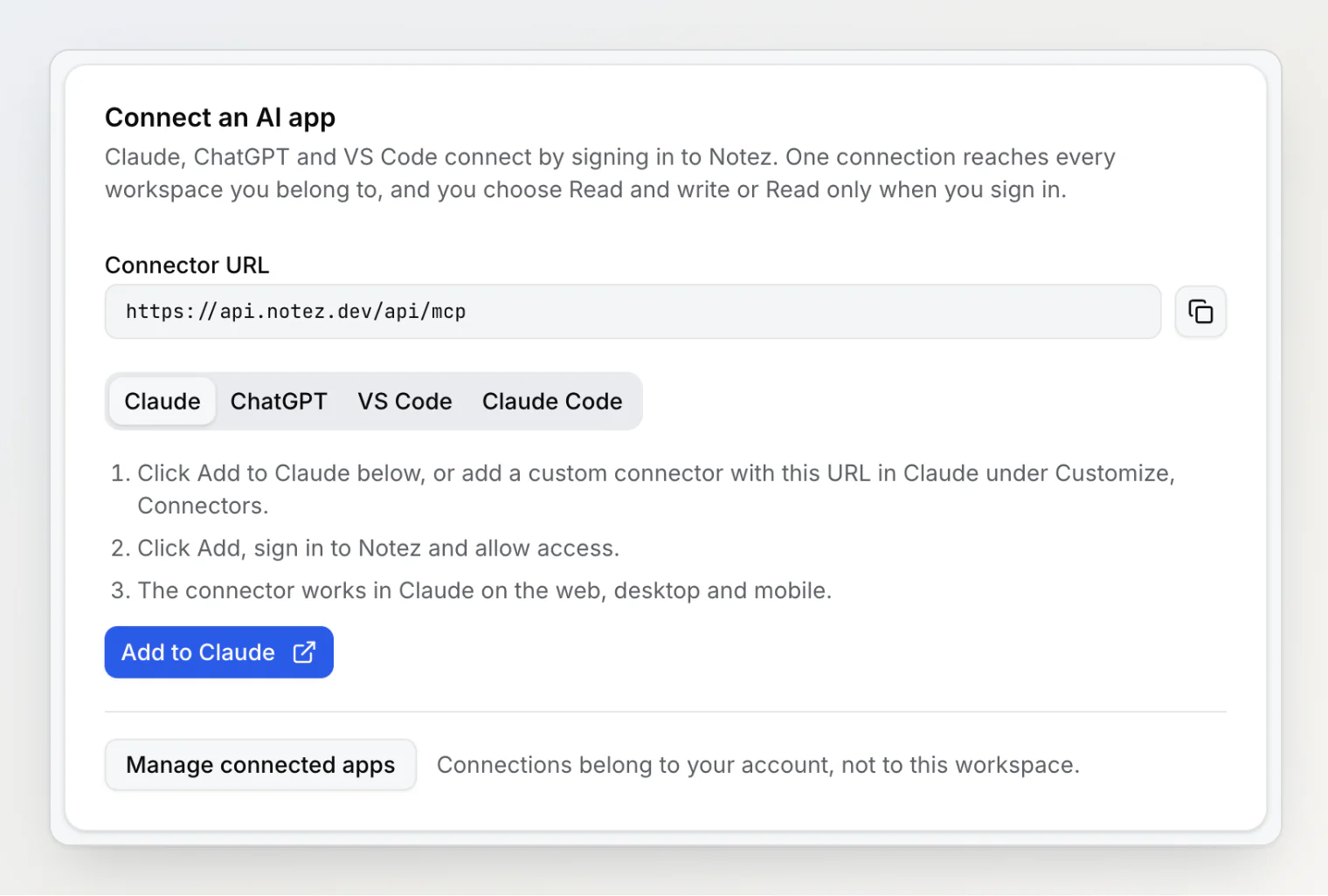
Three clicks, one of them is "Allow"
In Notez, open Settings → Integrations → Notez MCP server. The Connect an AI app card has the URL, https://api.notez.dev/api/mcp, and the steps for Claude, ChatGPT, VS Code and Claude Code. For Claude there is a shortcut: Add to Claude opens Claude's own Add custom connector dialog with the name and URL already filled in.
Click Add in Claude and it sends you to Notez. If you are signed in, you land straight on this:
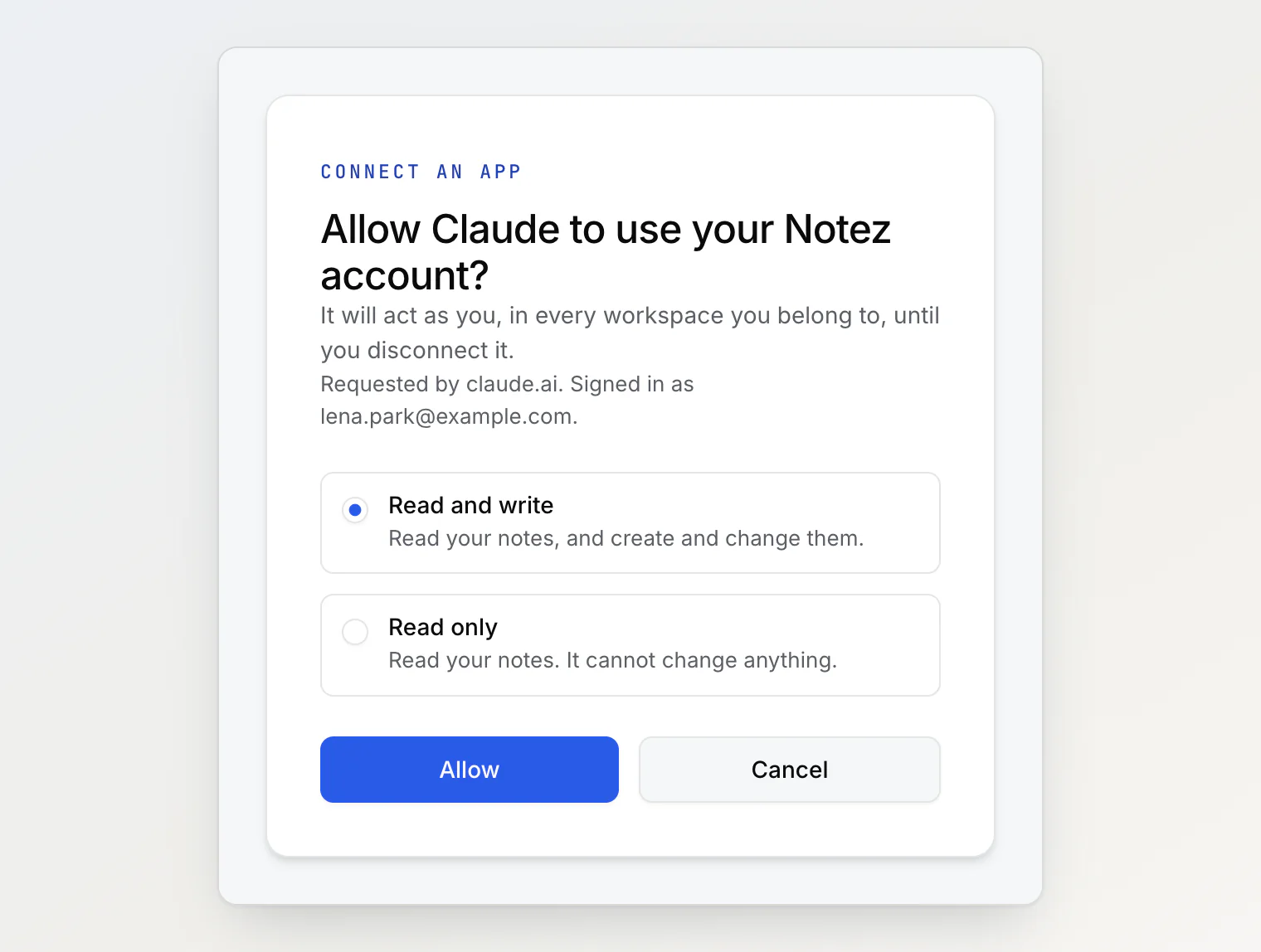
Pick Read and write or Read only, click Allow, and you are back in Claude with Notez in its list of connectors. Add it once on claude.ai and it is in the desktop and mobile apps as well. ChatGPT works the same way once developer mode is on, and so does VS Code through MCP: Add Server.
Read only means the tools are not there
There are two ways to make an assistant read only. You can hand it every tool and tell it, politely, not to use some of them. Or you can leave those tools out.
We did the second. A connection you allow as Read only is given 12 tools, all of them for reading: searching and listing notes, opening one, reading a board, tags and properties. The tools that create, edit, move or delete are not in its list, so there is nothing for it to call, however the conversation goes. If you change your mind, disconnect the app and connect it again with the other option.
Every tool is also labelled as reading, writing or destructive. Clients that ask before a change, ChatGPT among them, use those labels to decide when to check with you.
One connection, every workspace
This part needed the most thought. An MCP key belongs to one workspace, which is a good property: a key made in your work workspace can never see your personal one.
But a connection you make by signing in belongs to you, and Claude only lets you add a given connector URL once. If that one connection could only reach one workspace, everyone with more than one would be stuck choosing which half of their notes Claude gets to see.
So a sign-in connection reaches every workspace you are a member of, and every request names the workspace it is about. The first thing the assistant does is ask Notez for your list of workspaces. If you only have one, it never has to think about it. If you have several, it picks the one you mention, and an id from one workspace simply does not work in another, so it cannot drift into the wrong one halfway through a task.
If you want the old isolation for an assistant, keys still work exactly as before, for Cursor, Windsurf and your scripts too.
What it is good for
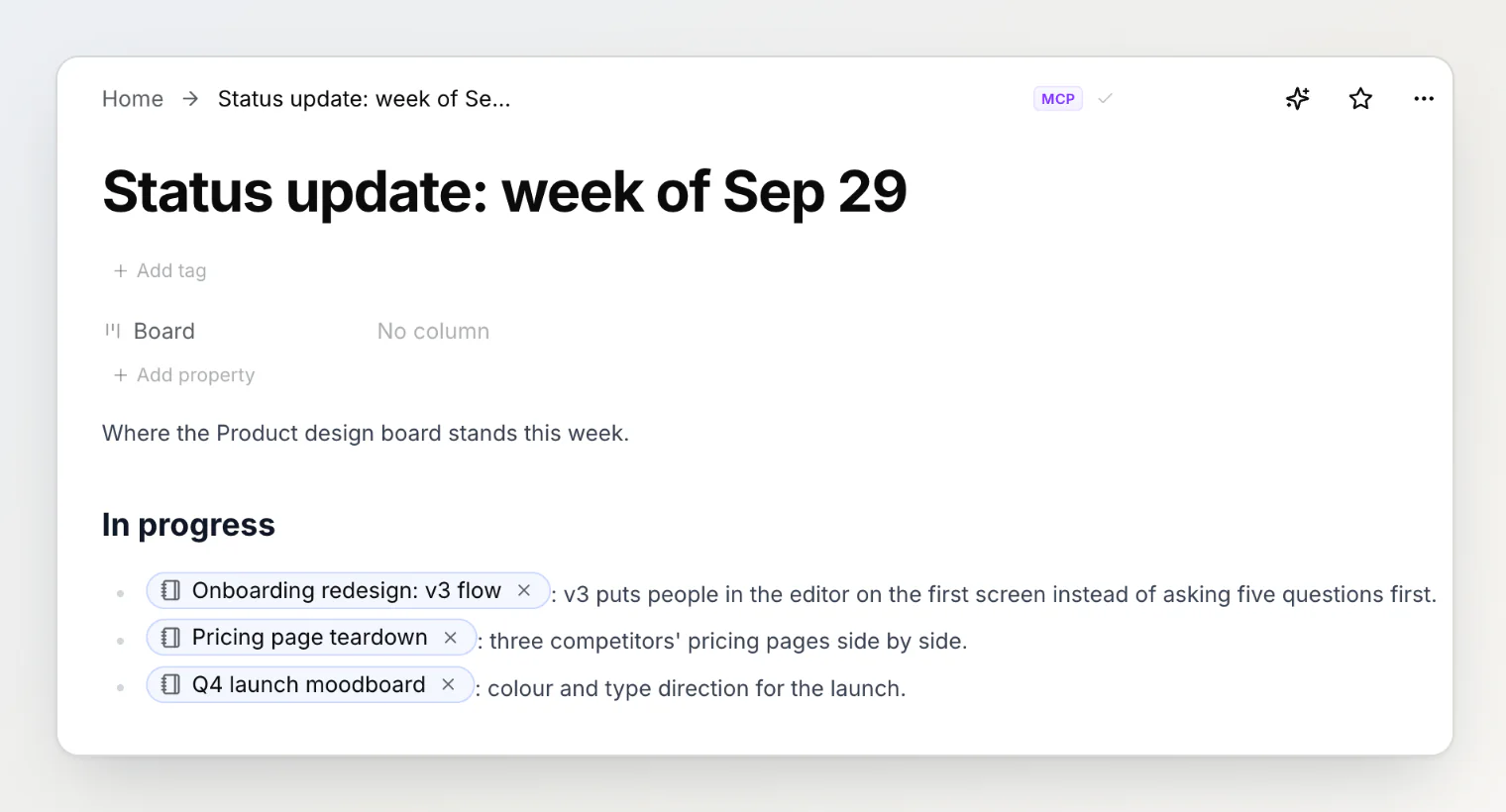
The obvious use is "write me a note". The more useful one is asking questions of a board you have stopped looking at closely. Ask for "a status update from the Product design board, with links to each note" and you get a real note back, with a link to every card it mentions:
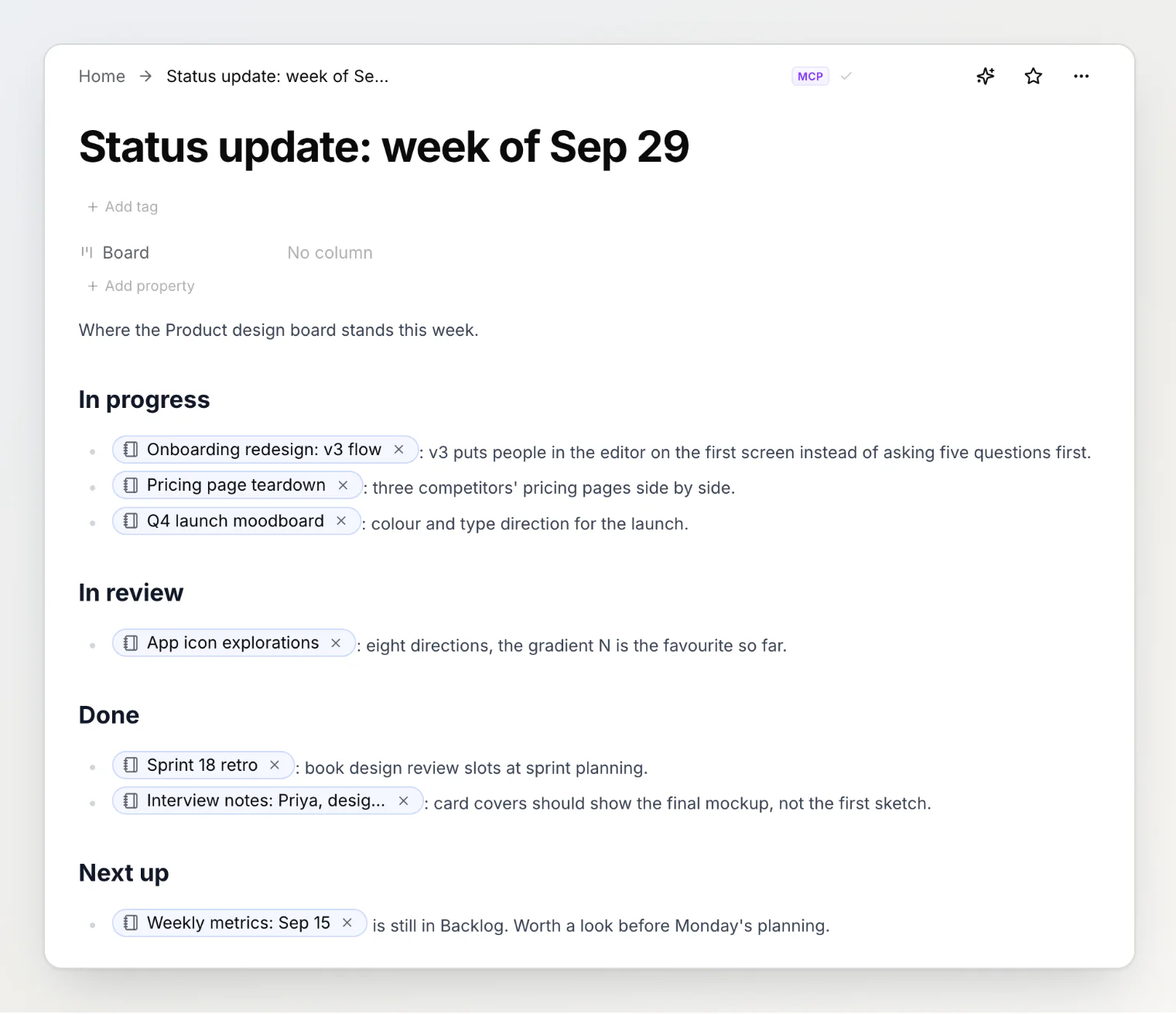
The MCP badge next to the title marks anything an assistant wrote, so it never blends in with your own notes. A few more prompts that work well:
"What did I write about onboarding last month? Quote the parts that disagree with each other."
"Move everything in the Review column to Done."
"Turn my interview notes into a list of feature requests and add them to the Backlog column."
"Which notes in my Product design workspace have not been touched since August?"
Taking access back
Every app you connect is listed in Settings → Security → Connected apps, with its access and the date you connected it.
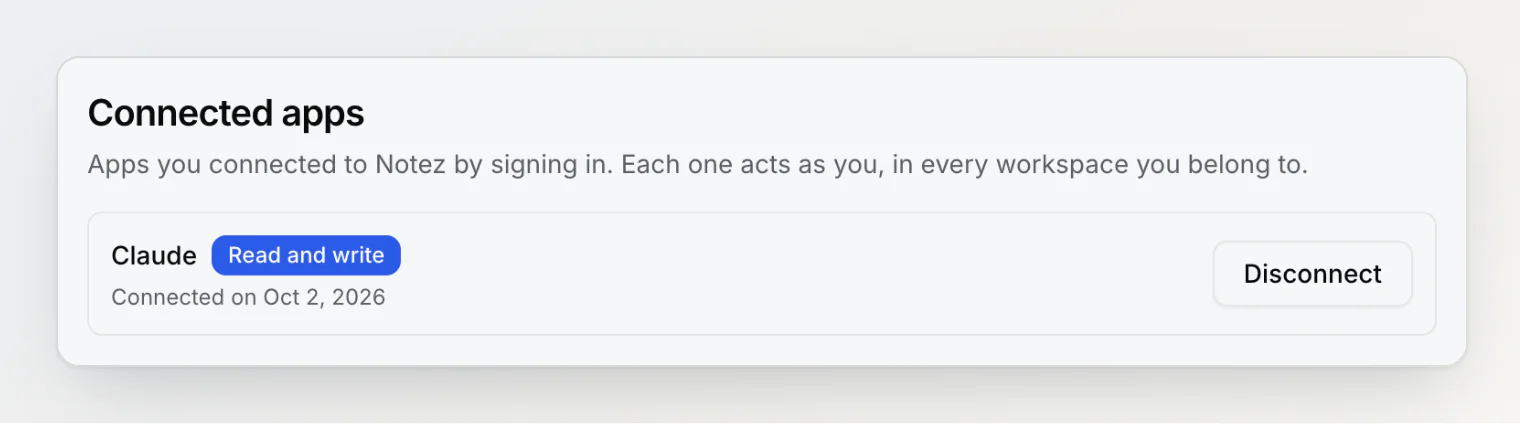
Disconnect works immediately, not at the end of some token's lifetime. The standard OAuth setup does not guarantee that: an app keeps a refresh token and can quietly mint new access for weeks. So Notez checks every single request against the grant you gave and against your account. Once you disconnect, the app's very next call fails, and so does its next attempt to refresh. Changing or resetting your password disconnects every app at once, which is what you want after a scare.
Small print
Only Claude, Claude Code, ChatGPT and VS Code can connect by signing in. Cursor, Windsurf and scripts use an MCP key, from the same page.
Any member of a workspace can connect an app. Creating the workspace's MCP key stays with the owner.
Uploading images and files from your computer still needs an assistant that can run a shell command, such as Claude Code. Claude on the web and ChatGPT will tell you to add the file in Notez.
Guest accounts cannot connect apps. Create an account first; it takes a minute.
The step-by-step guide, including ChatGPT, VS Code and Claude Code, is in Connect Claude, ChatGPT or VS Code to Notez. The full tool list is in MCP server setup.