Claude, ChatGPT and VS Code can work with your Notez notes directly. You give the app one URL, sign in to Notez in the window it opens, and decide what it is allowed to do. There is no API key to generate, copy or keep safe.
Before you start
You need a Notez account. Guest accounts cannot connect apps, so create an account first if you are trying Notez as a guest.
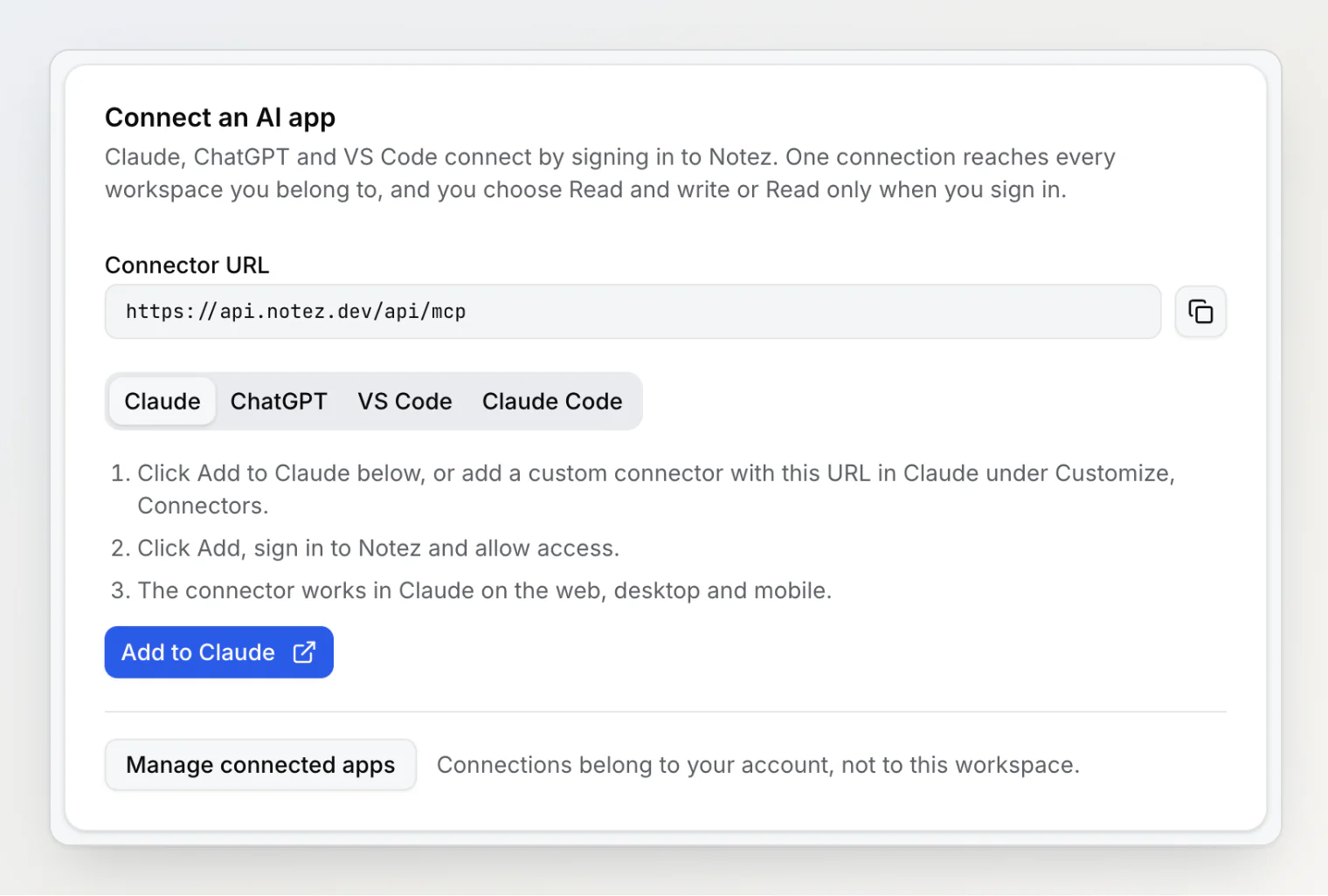
The URL every app asks for is:
https://api.notez.dev/api/mcpYou will also find it in Notez under Settings → Integrations → Notez MCP server, in the Connect an AI app card, with a copy button and the steps for each app.
Claude (web, desktop and mobile)
In Notez, open Settings → Integrations → Notez MCP server and click Add to Claude. Claude opens its Add custom connector dialog with the name and URL already filled in. You can also do it from Claude itself: go to Customize → Connectors, add a custom connector and paste the URL.
Click Add. Claude opens a Notez page where you sign in and allow access.
Done. A connector you add in Claude on the web is also available in the Claude desktop and mobile apps.
ChatGPT
In ChatGPT on the web, open Settings → Apps → Advanced settings and turn on developer mode. ChatGPT only offers this on paid plans.
Click Create app, paste the URL, then sign in to Notez and allow access.
VS Code
Open the Command Palette, run MCP: Add Server and choose HTTP.
Paste the URL. When VS Code asks, sign in to Notez and allow access.
Claude Code
claude mcp add --transport http --scope user notez https://api.notez.dev/api/mcpThen run /mcp in Claude Code, pick notez and sign in. Claude Code can also connect with an MCP key instead; MCP server setup covers that.
What you see when you connect
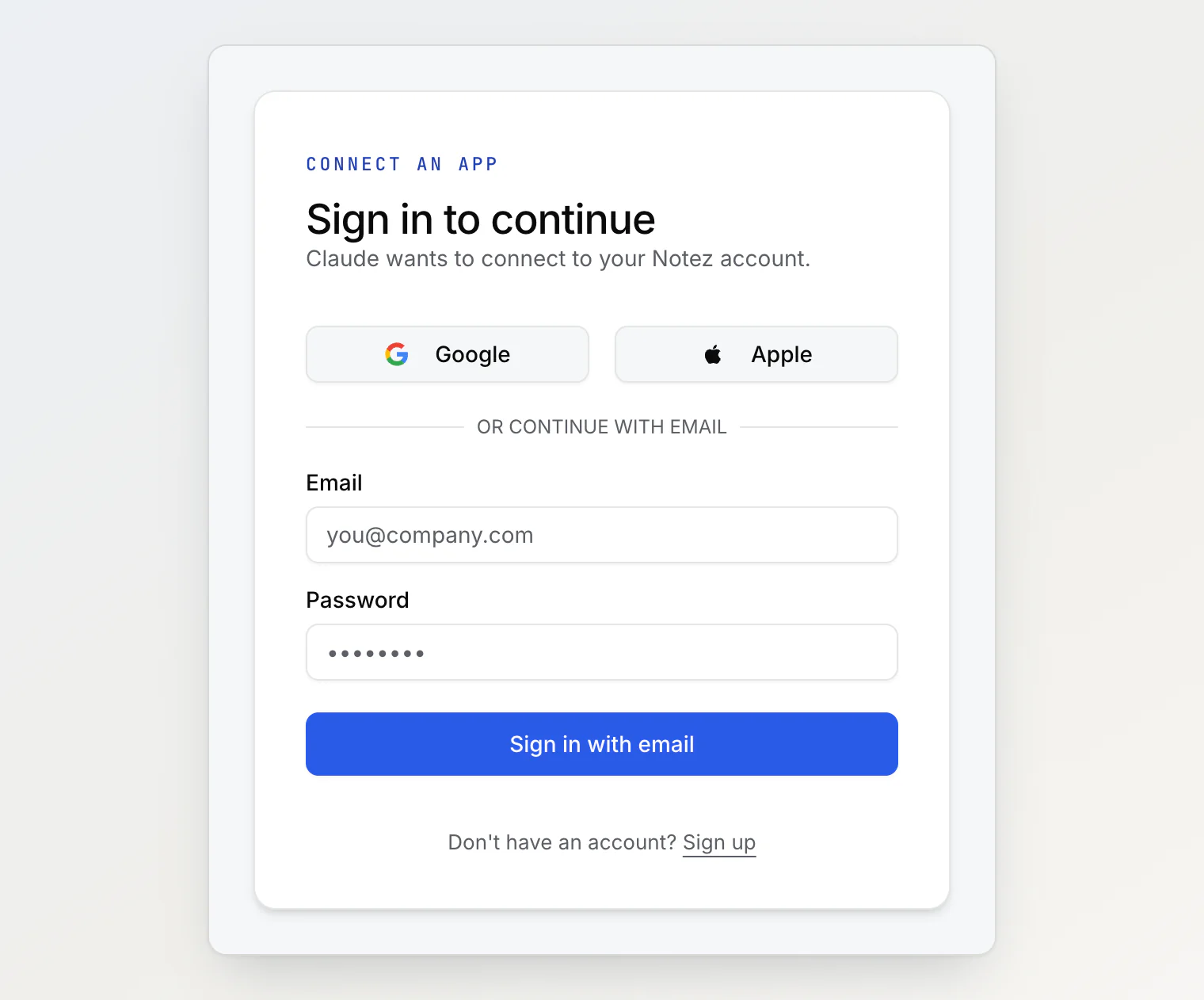
The app opens a Notez page that says which app is asking, for example "Claude wants to connect to your Notez account." Sign in with Google, Apple, or your email and password. If you are already signed in to Notez in that browser, this step is skipped. No account yet? Use Sign up on the same page.
Next, Notez asks what the app may do:
Read and write: it can read your notes and also create and change them. This is selected by default.
Read only: it can read your notes, but it is not given any tool that changes something.
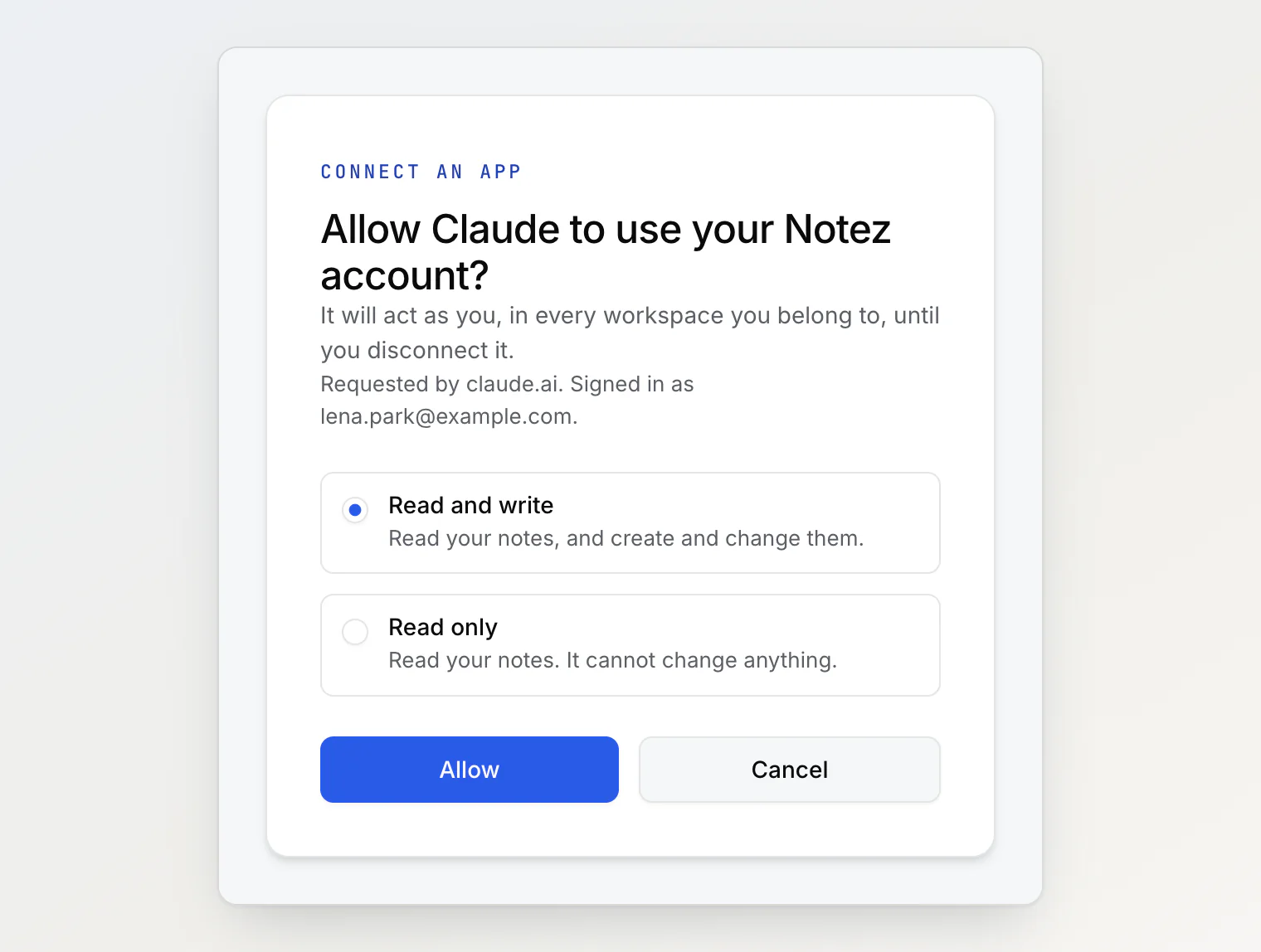
The page also shows which site made the request (Requested by claude.ai) and which account you are signed in as. Check both, then click Allow and you are sent back to the app. Cancel sends it back without access.
The link an app opens is valid for 10 minutes. If you see "This sign-in link has expired", start connecting again from the app.
One connection, all your workspaces
A connection belongs to your account, not to a workspace. It can reach every workspace you are a member of, whether you own it or were invited.
Before it does anything else, the app asks Notez for your list of workspaces, and every request after that names the workspace it is about. If you only have one workspace, it does not need to ask. If you have several, say which one you mean, for example "In my Product design workspace, what is still in progress on the board?" An id from one workspace never works in another, so the app cannot mix them up quietly.
This is the main difference from an MCP key, which only ever reaches the one workspace it was created in. If you want an assistant that can see just one workspace, use a key. MCP server setup explains both.
What a connected app can do
It gets the same tools as an MCP key: search and read notes, boards, tags and properties, create and edit notes, set tags and properties, move notes and cards, and move notes to the Bin. On top of that it has list_workspaces. That is 27 tools with Read and write and 12 with Read only. The full list is in MCP server setup.
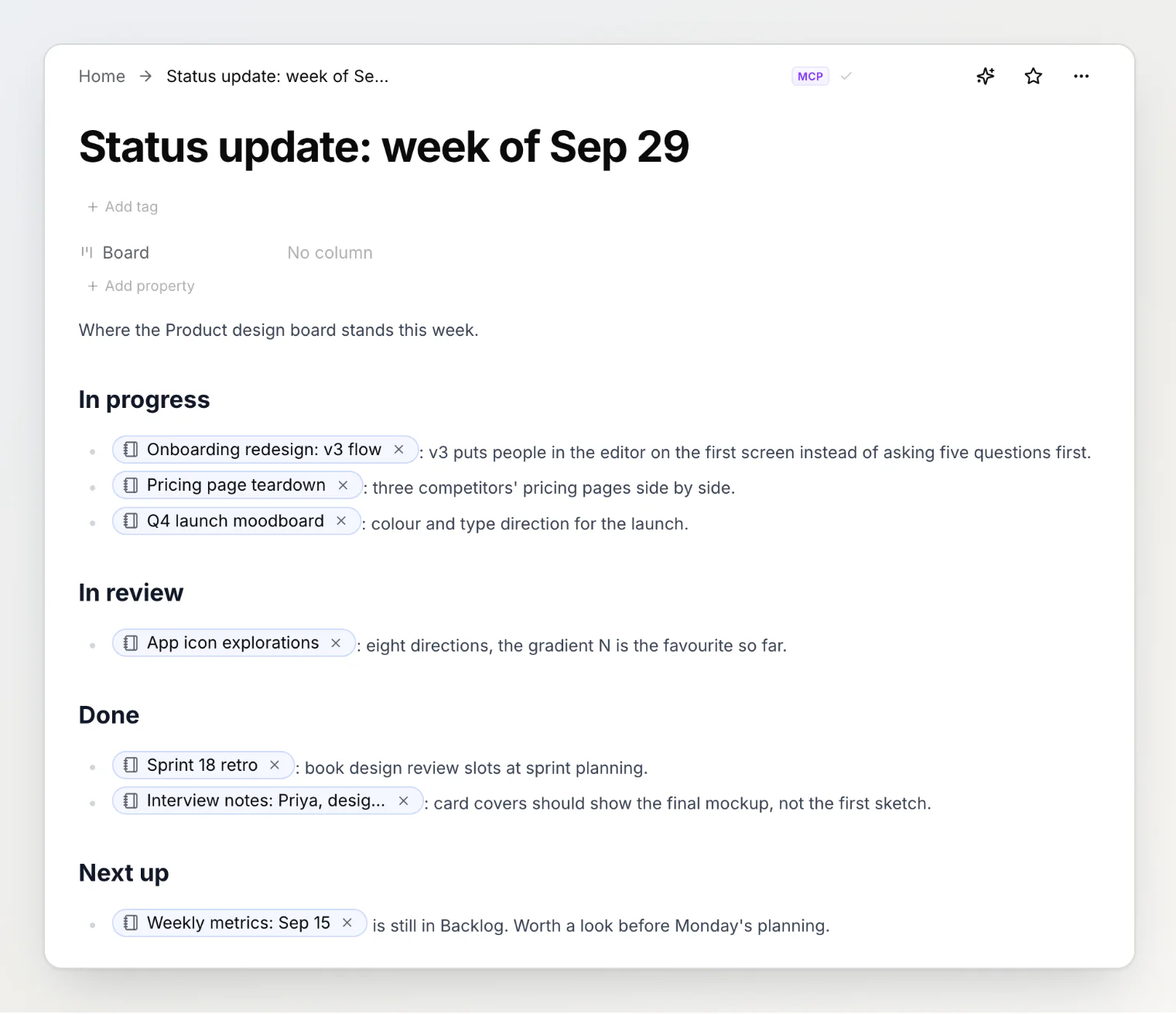
Notes an app creates carry an MCP badge, so you can always tell them apart from your own. This status update was written by Claude from a workspace board, with a link to each note it mentions:
A few limits worth knowing:
Uploading files needs a shell. Claude Code can put local images and files into a note. Claude on the web, desktop or mobile, and ChatGPT, cannot run the upload, so add files in Notez instead.
Only these apps can sign in: Claude, Claude Code, ChatGPT and VS Code. Cursor, Windsurf and your own scripts connect with an MCP key.
Nothing is deleted for good. A deleted note goes to the Bin, and an app cannot remove tags, properties, options or board columns.
Any member can connect an app. Only the workspace owner can create or rotate the workspace's MCP key.
Seeing and disconnecting apps
Settings → Security → Connected apps lists every app you have connected, its access, and the date you connected it. The Manage connected apps button on the Integrations page takes you there too.
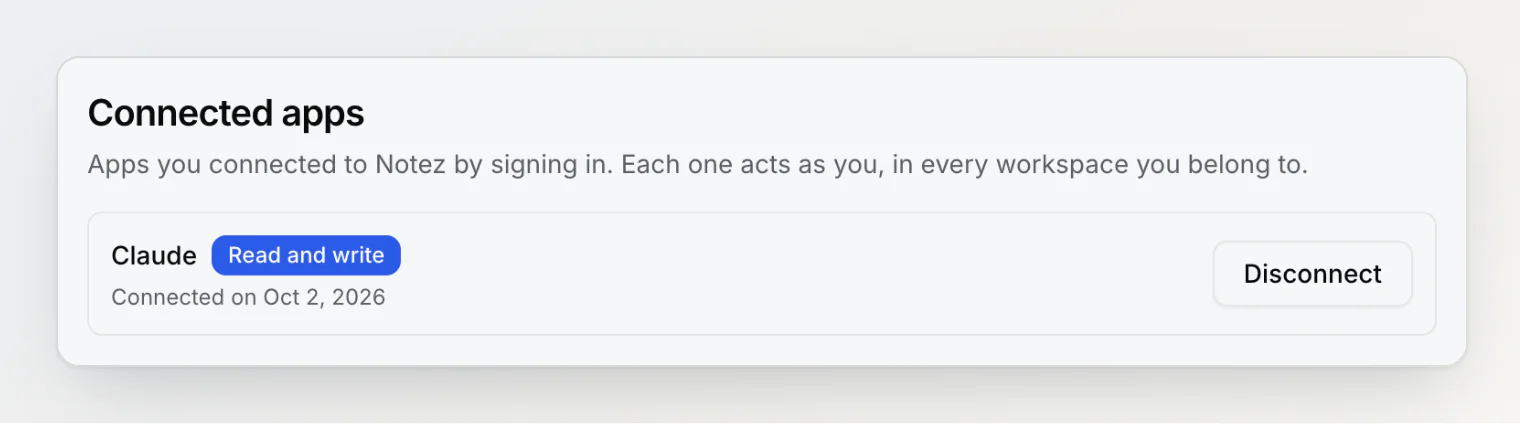
Disconnect cuts an app off at once: its next request fails and it cannot renew its access. To move an app between Read only and Read and write, disconnect it and connect again.
Changing or resetting your password disconnects every app. Signing out of Notez does not.
If something goes wrong
"This link is not valid." The page was opened without the details the app sends along. Start again from the app rather than from a bookmark.
"Guest accounts cannot connect apps." Create an account, then connect.
The app cannot find a note. It is probably looking in a different workspace. Tell it which workspace the note is in.
It stopped working after a password change. That is expected: connect it again.
Cursor or Windsurf will not sign in. They connect with an MCP key; see MCP server setup.
More answers are in Troubleshooting common problems.