Cover images
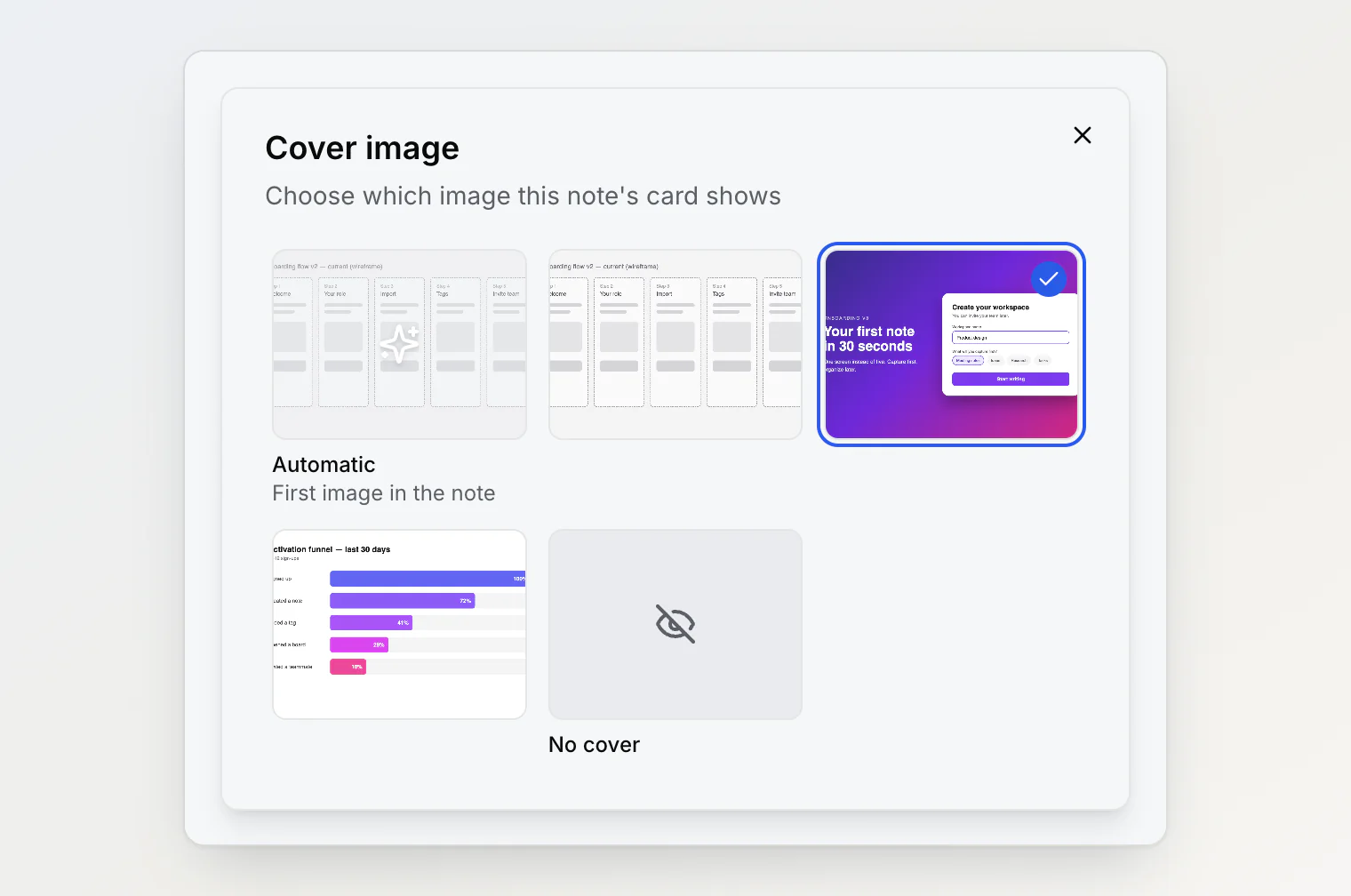
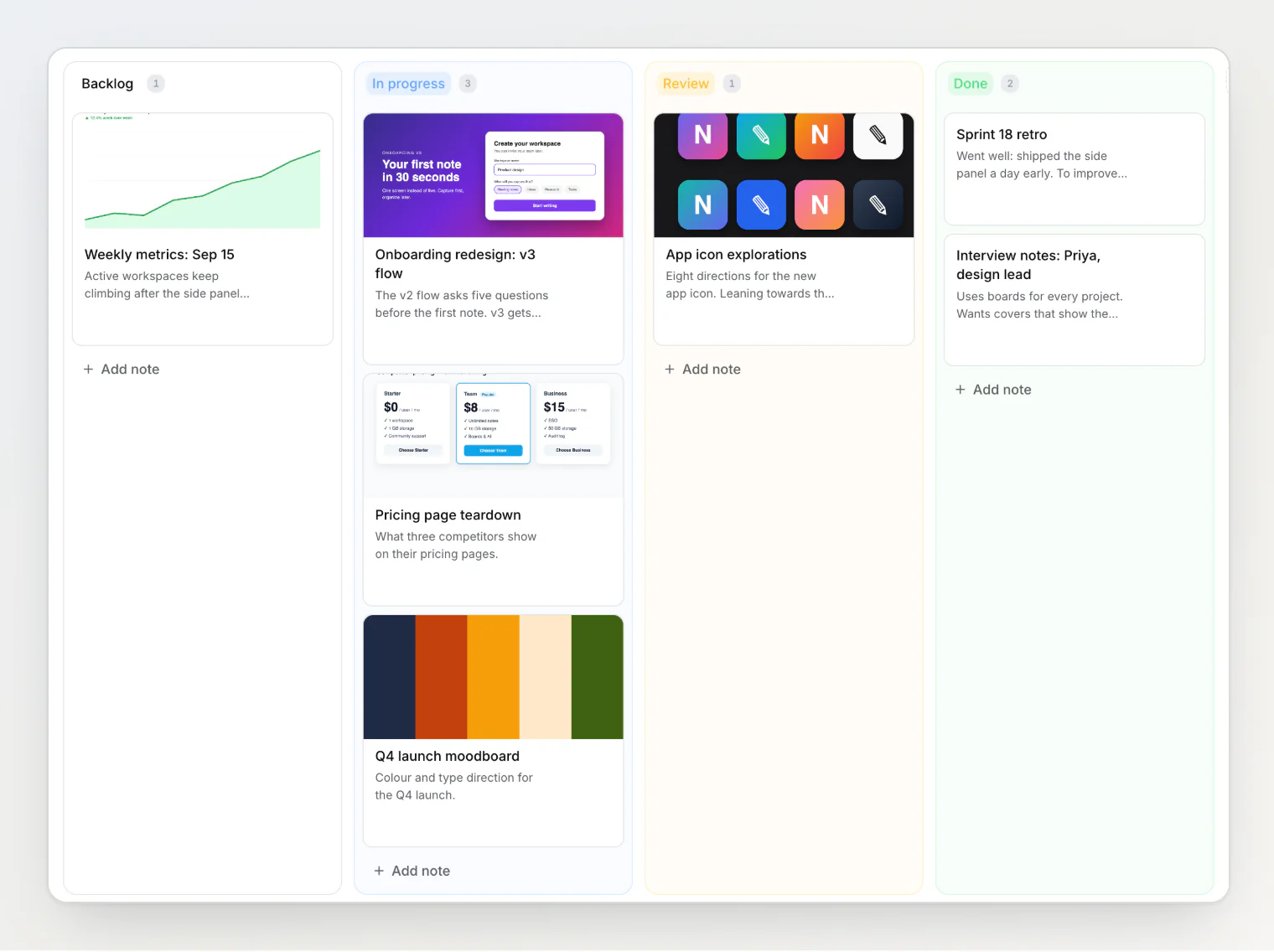
Choose the cover image of a note card. A new Cover image item in the … menu opens a dialog with every image in the note. Pick one and it becomes the image on the note's card in Grid view and Board view.
Three choices: Automatic (the first image in the note, as before and still the default), any image in the note, or No cover.
Available everywhere you see the note: the menu of an open note (side panel and full page), of a card in Grid view, of a row in Table view, and of a card on a board.
Board cards update in place. Changing a cover from a board card does not reload the board.
Covers do not break. If the chosen image is deleted from the note, the card shows the first image again. Undoing the deletion brings the choice back.
Not an edit. Choosing a cover leaves the note's last-modified time alone, so sorting by last updated does not move the note, and no version is saved.
See Choosing a note's cover image for the details.