Cards in Grid view and Board view show one image from the note: its cover. By default the cover is the first image in the note. You can pick any other image in the note instead, or show no image at all.
The table view has no images, so covers only matter in the other two views.
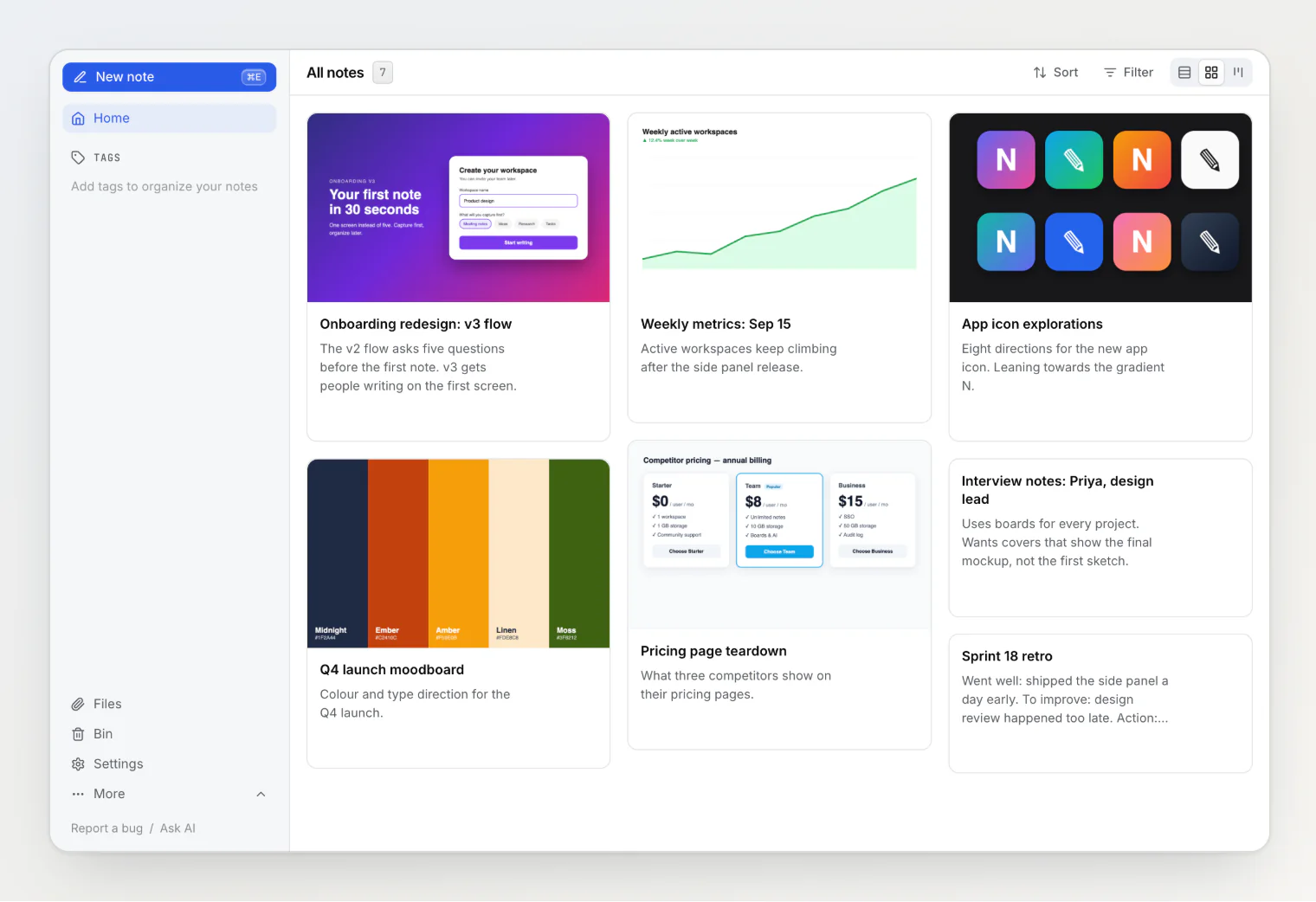
Choosing a cover
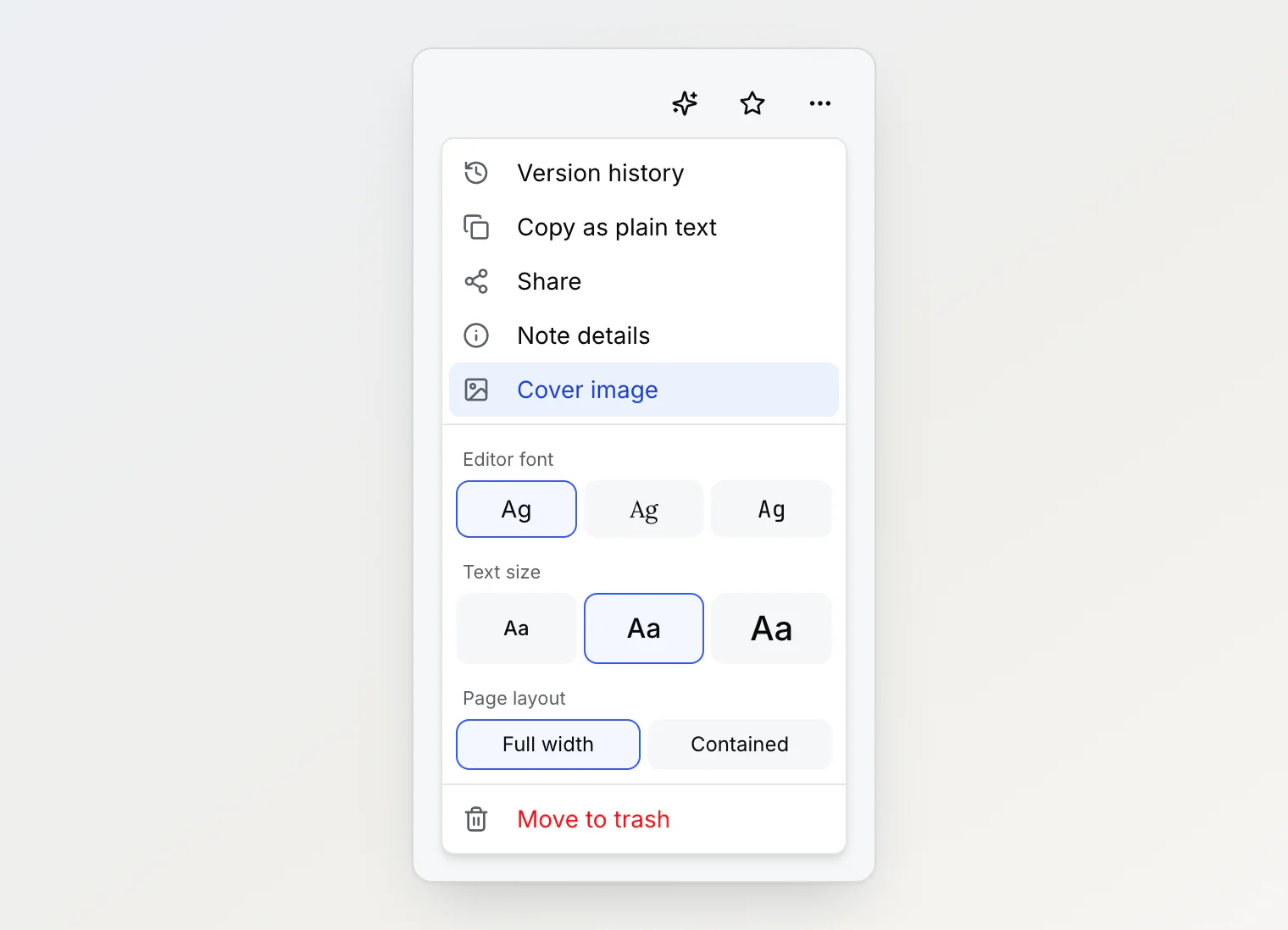
Open the … menu and choose Cover image. The item is in three menus:
the menu on an open note, in the side panel or on the full page
the menu on a card in Grid view, and on a row in Table view
the menu on a card on a board
The dialog shows every image in the note, in the order they appear, between two other choices. The current choice has a check mark. Click a tile to use it: the dialog closes and the card changes straight away.
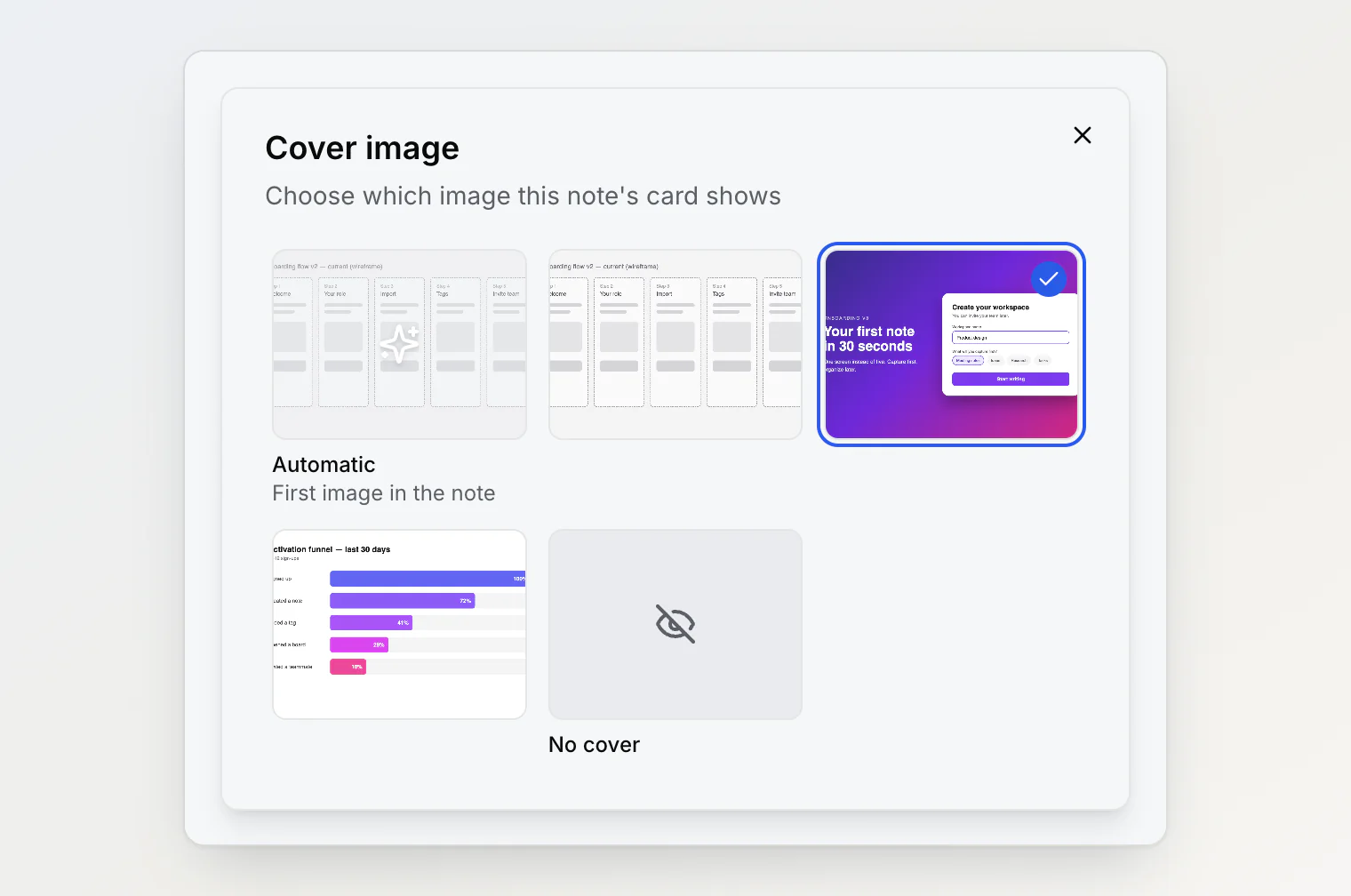
Choice | What the card shows |
|---|---|
Automatic | The first image in the note. This is the default. |
An image | That image, wherever it sits in the note. |
No cover | No image, even though the note has some. |
If the note has no images, the dialog says This note has no images. Add an image to the note first.
Before and after
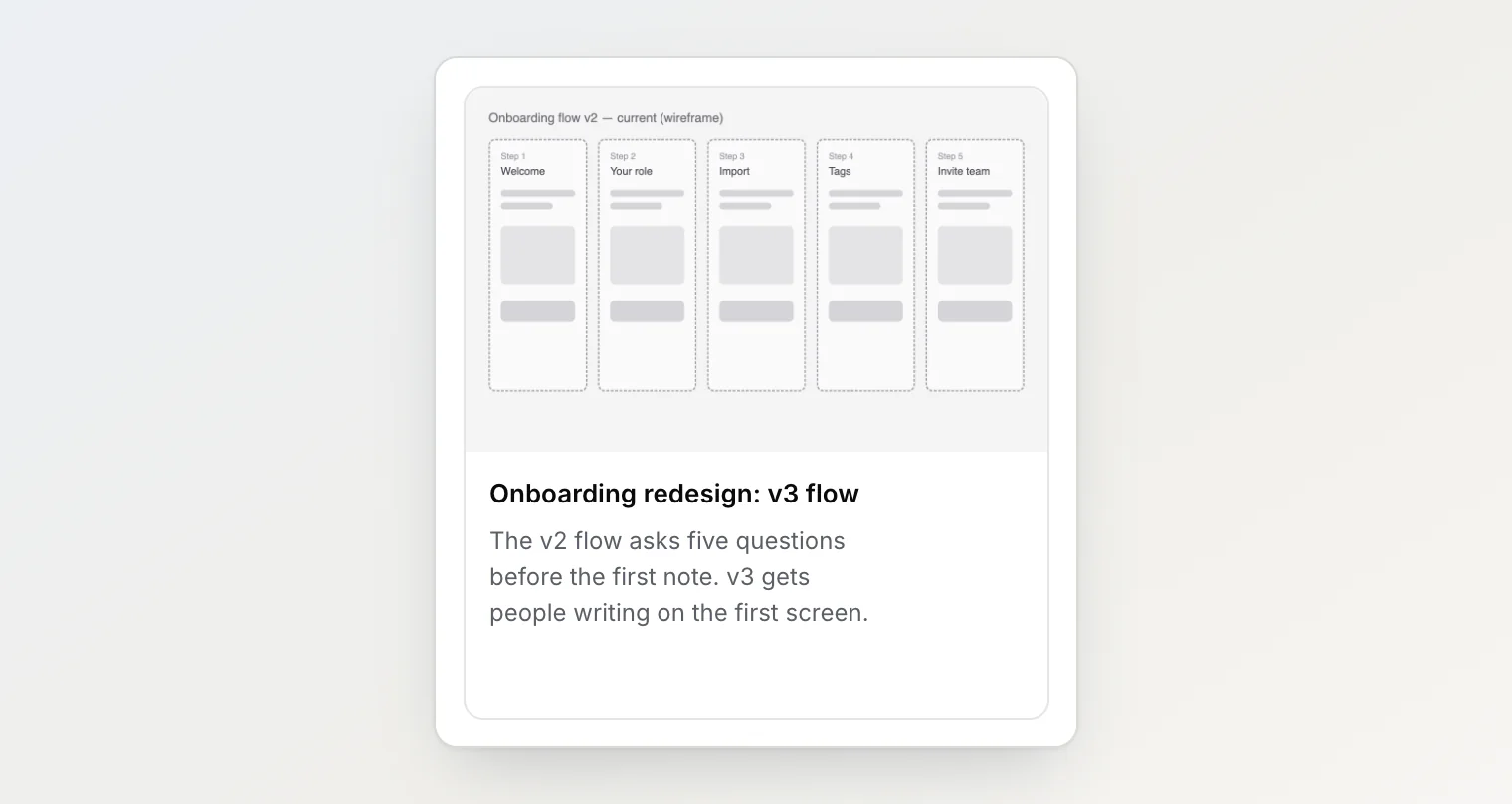
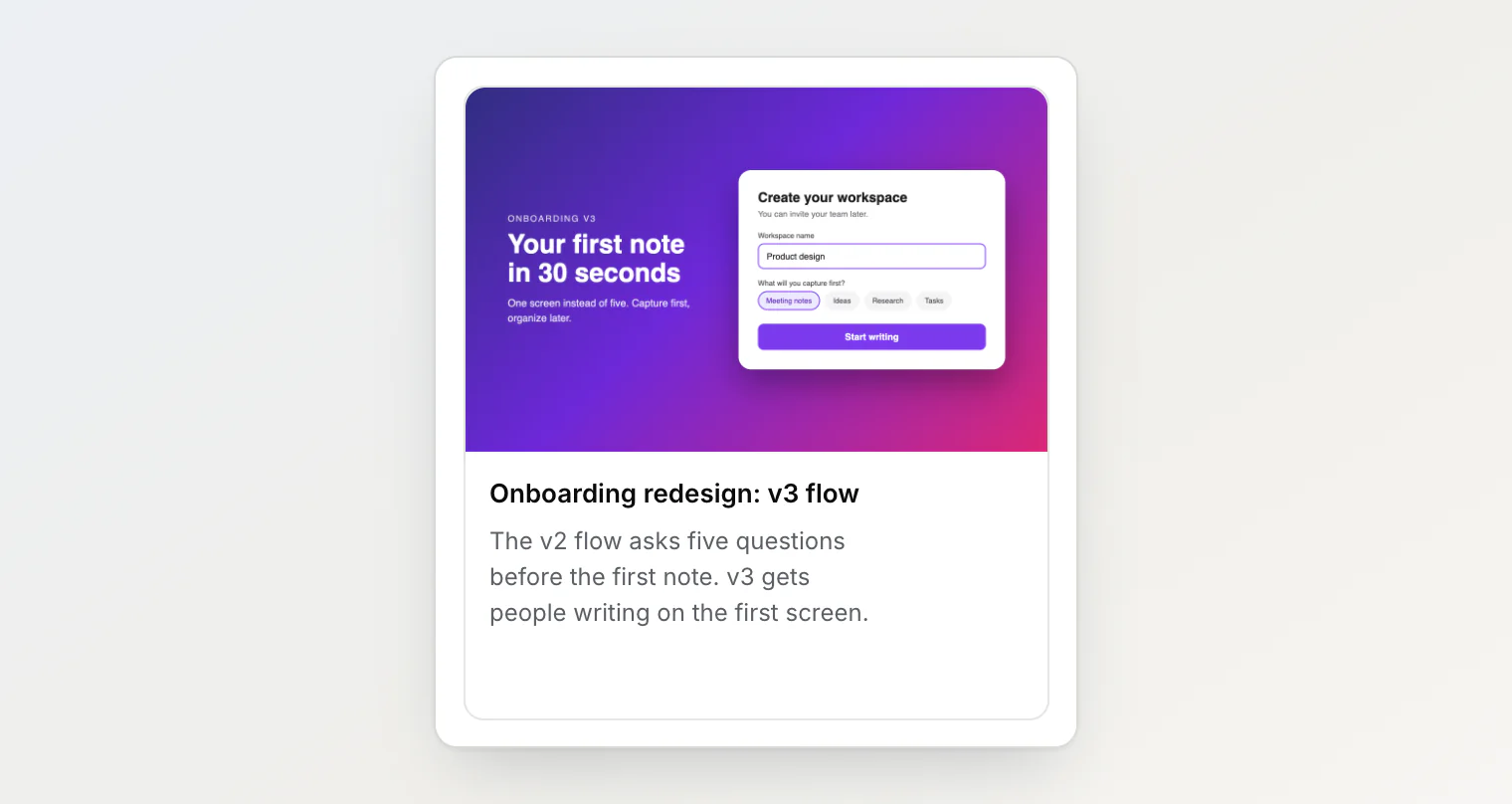
A note often starts with a rough sketch and ends with the finished design. With Automatic, the card keeps showing the sketch:
Choose the mockup as the cover and the card shows that instead, without moving anything in the note:
What happens when the note changes
You delete the chosen image. The card goes back to the first image in the note, and the dialog shows Automatic as selected. If you bring the same image back with
⌘Z, it becomes the cover again.You add or reorder images. Automatic follows whichever image is now first. A chosen image stays the cover wherever it moves.
You chose No cover. The card stays without an image when you add more images, until you pick something else.
You restore an older version. The note gets back the cover choice it had in that version. See Version history.
Good to know
Choosing a cover is not an edit. The note's last-modified time does not change, so the note does not jump to the top when the list is sorted by last updated, and no new version is saved.
Only images in the note's text can be covers. Files attached as file chips, and images inside sub-notes, are not offered.
The cover belongs to the note. In a shared workspace, everyone sees the same cover, and any member can change it.
Notes in the Bin have no Cover image item. Restore the note first.
AI chat and MCP cannot change a cover. Use the menu.
Board cards made by pasting a screenshot into a column's quick-add box start with that screenshot as their cover. See Using boards.