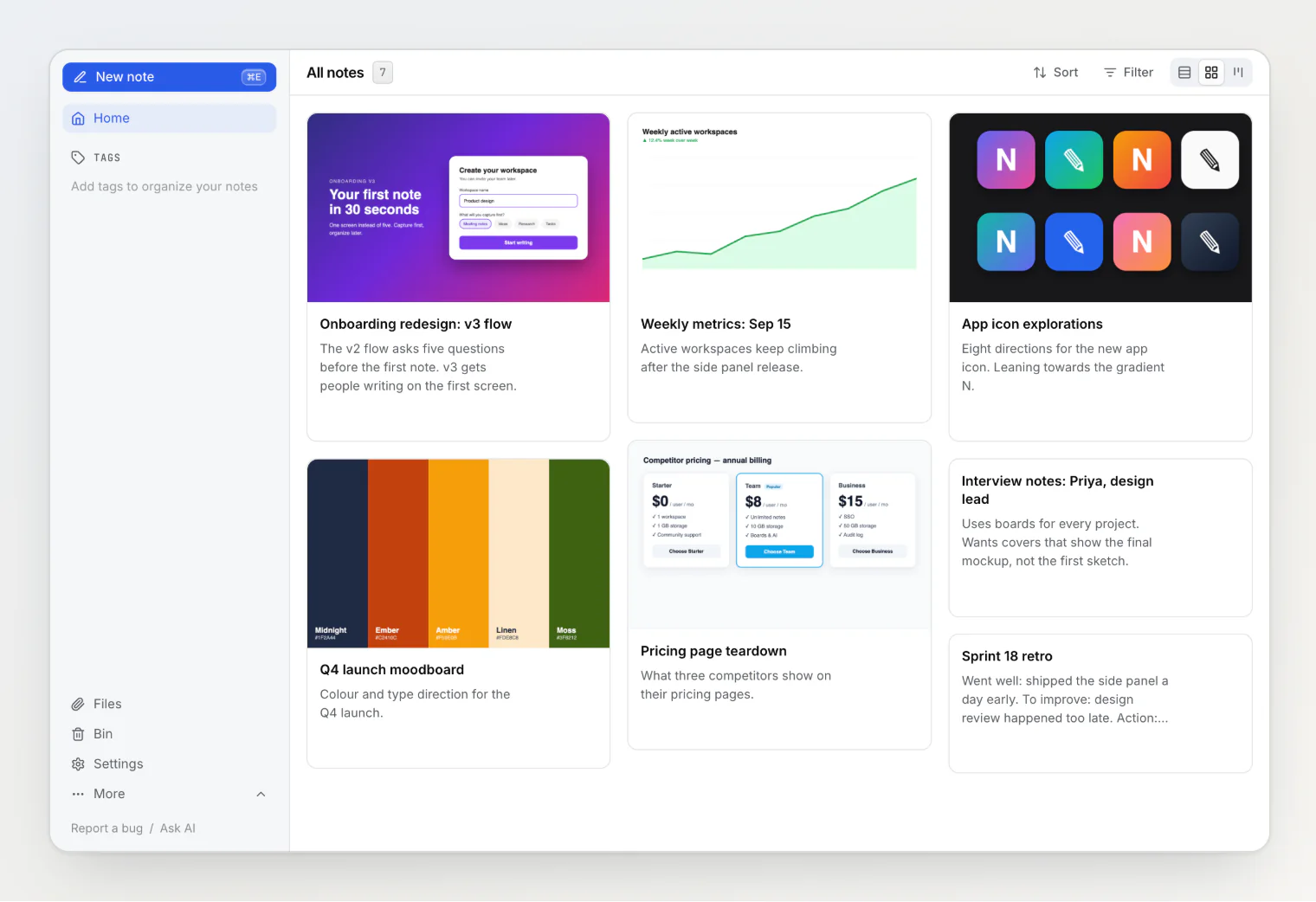
Cards are how you scan a workspace. In Grid view and on a kanban board, the image on a card often tells you what a note is about before you read its title.
Until now, Notez chose that image for you: the first image in the note. That works for a note that is one screenshot. It works less well for a note that grows. A design note starts with a rough wireframe, then gets a polished mockup and a results chart further down. The card kept showing the wireframe, because it came first.
The only way to change the card was to move images around inside the note. That meant changing the note just to change its thumbnail.
Notez v0.14.0 lets you choose the cover image yourself.
Pick the image a card shows
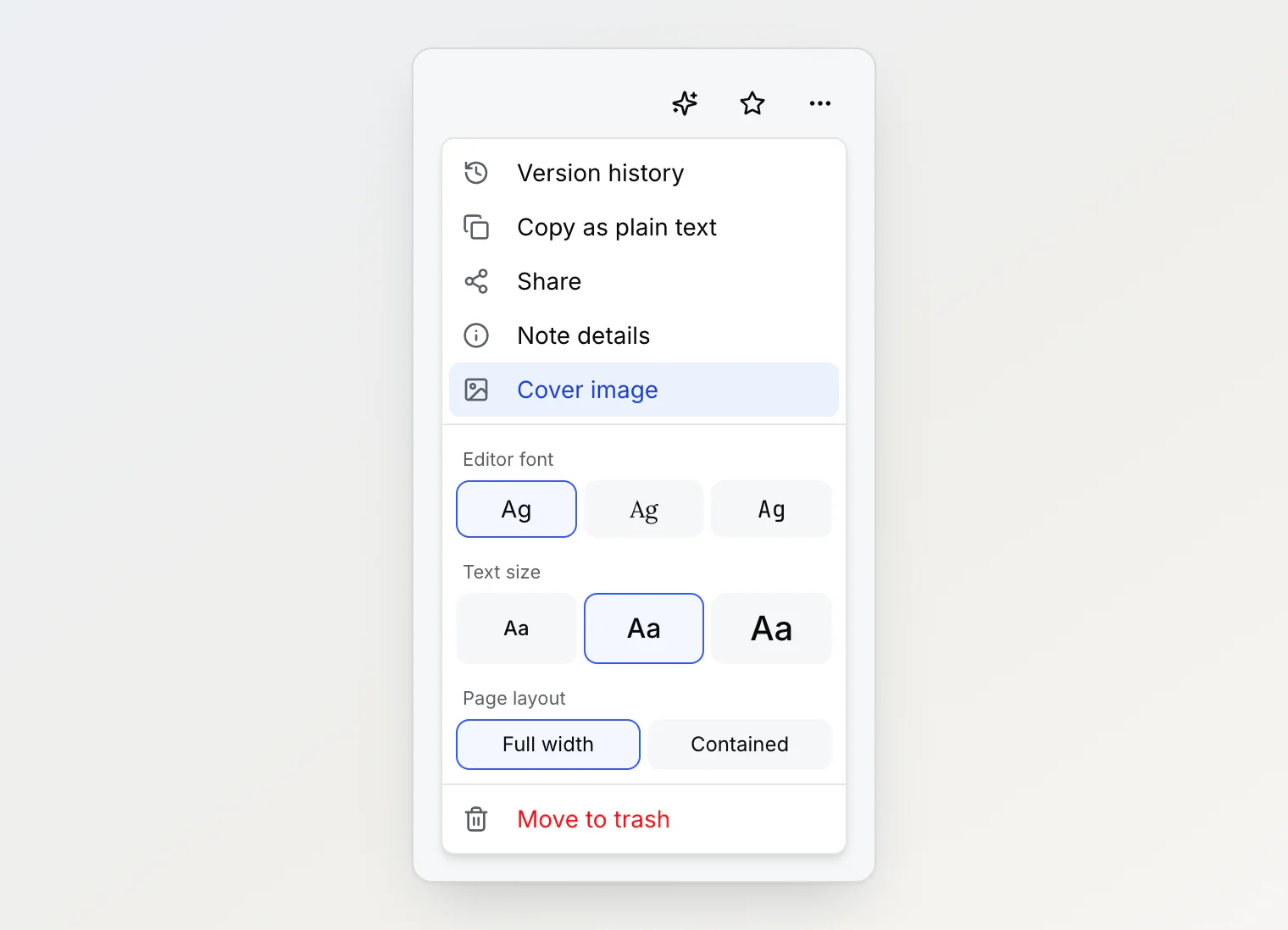
Open a note's … menu and choose Cover image. The item is in the menu of an open note, of a card in Grid view, of a row in Table view, and of a card on a board, so you can change a cover without leaving the list.
The dialog shows every image in the note as a tile. Click one and the card changes straight away.
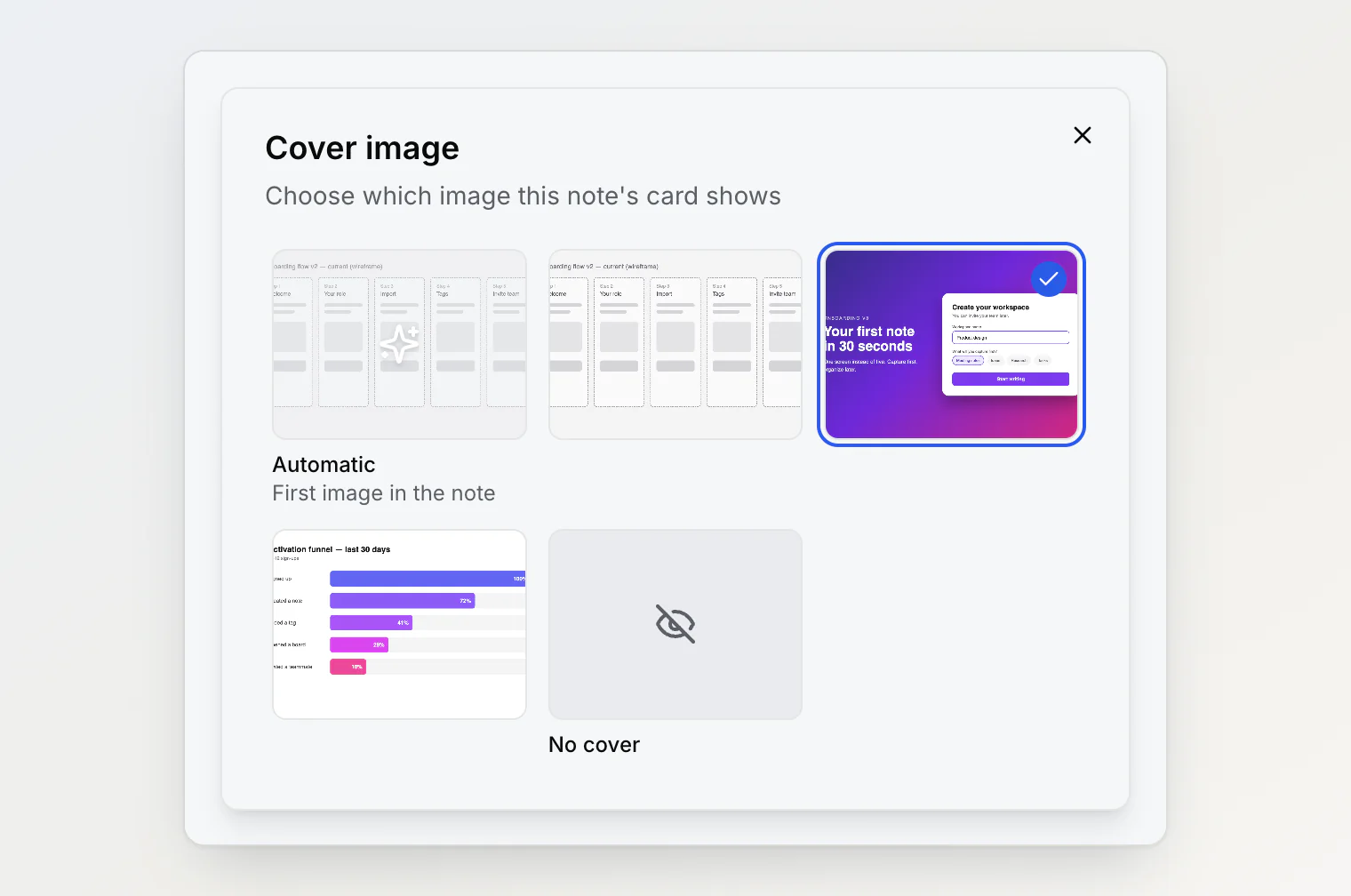
There are three kinds of choice:
Automatic keeps the old behaviour: the first image in the note. Every note starts here.
Any image in the note becomes the cover, wherever it sits in the text.
No cover shows the card without an image, for notes whose images are details rather than the point.
Before and after
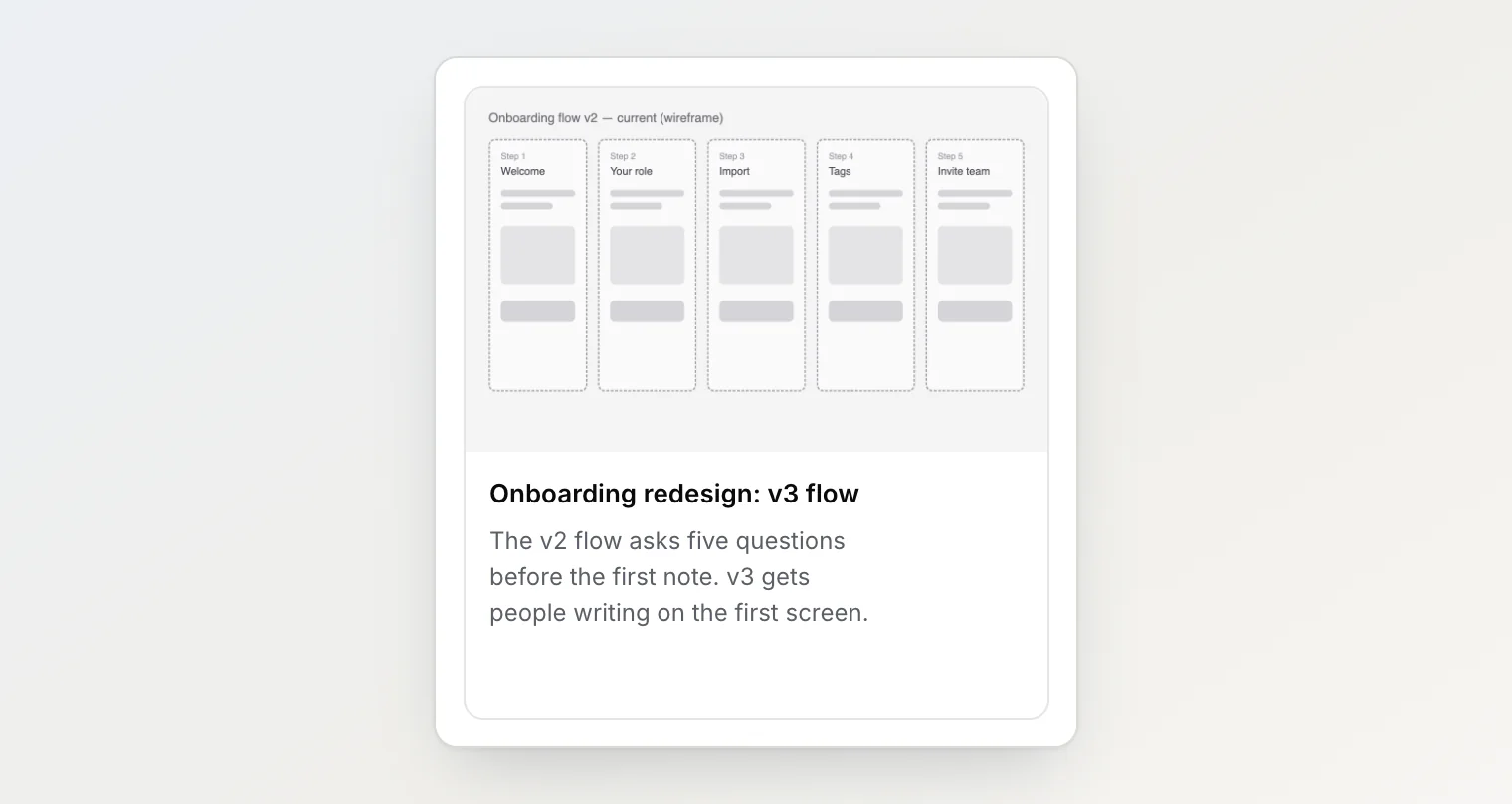
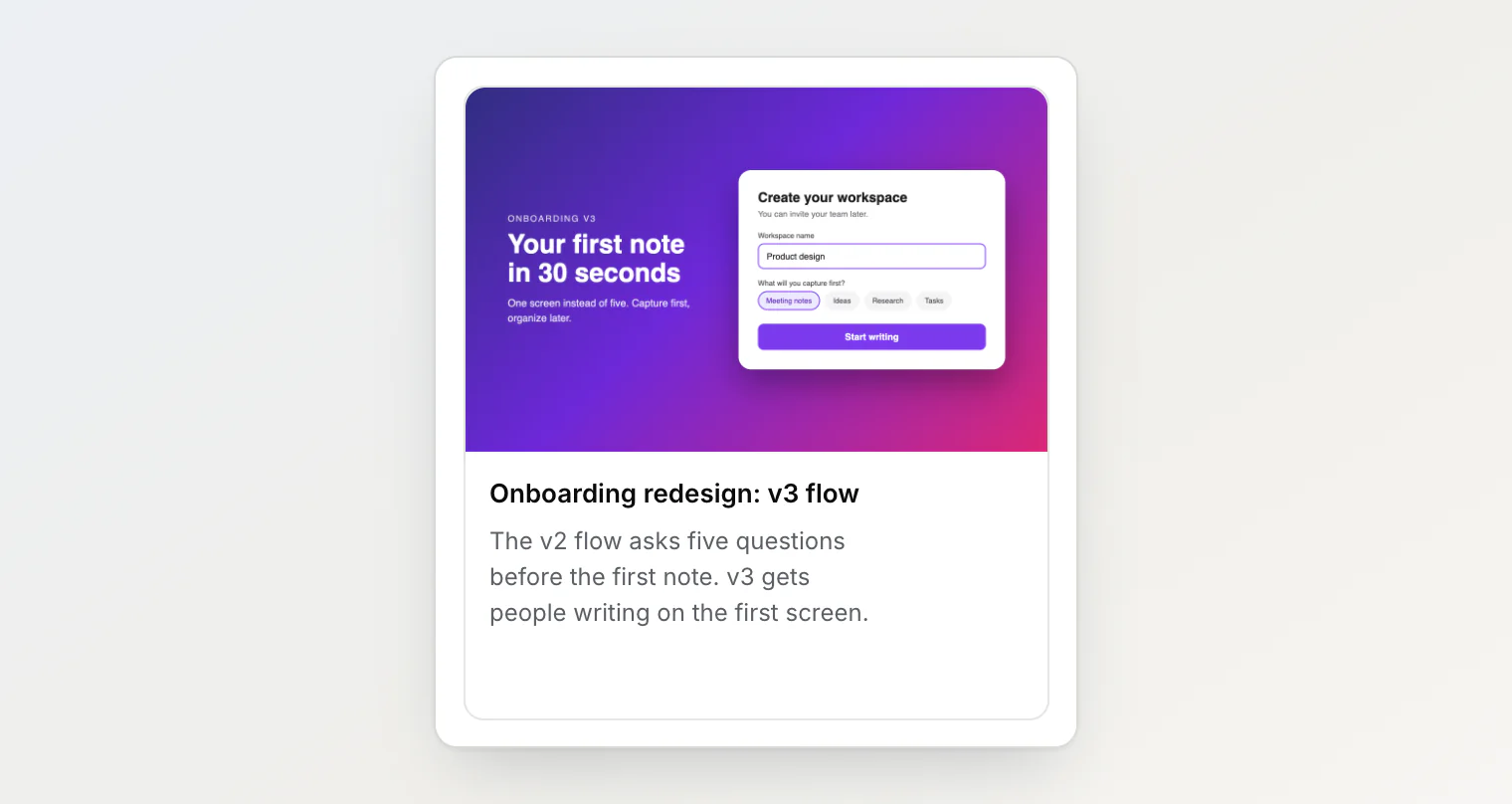
Here is the same note with the Automatic cover, and then with the mockup chosen. Nothing inside the note moved.
Better-looking kanban boards
Covers matter most on a board, where you look at many cards at once. A board of design work reads much faster when each card shows the latest version rather than the first sketch.
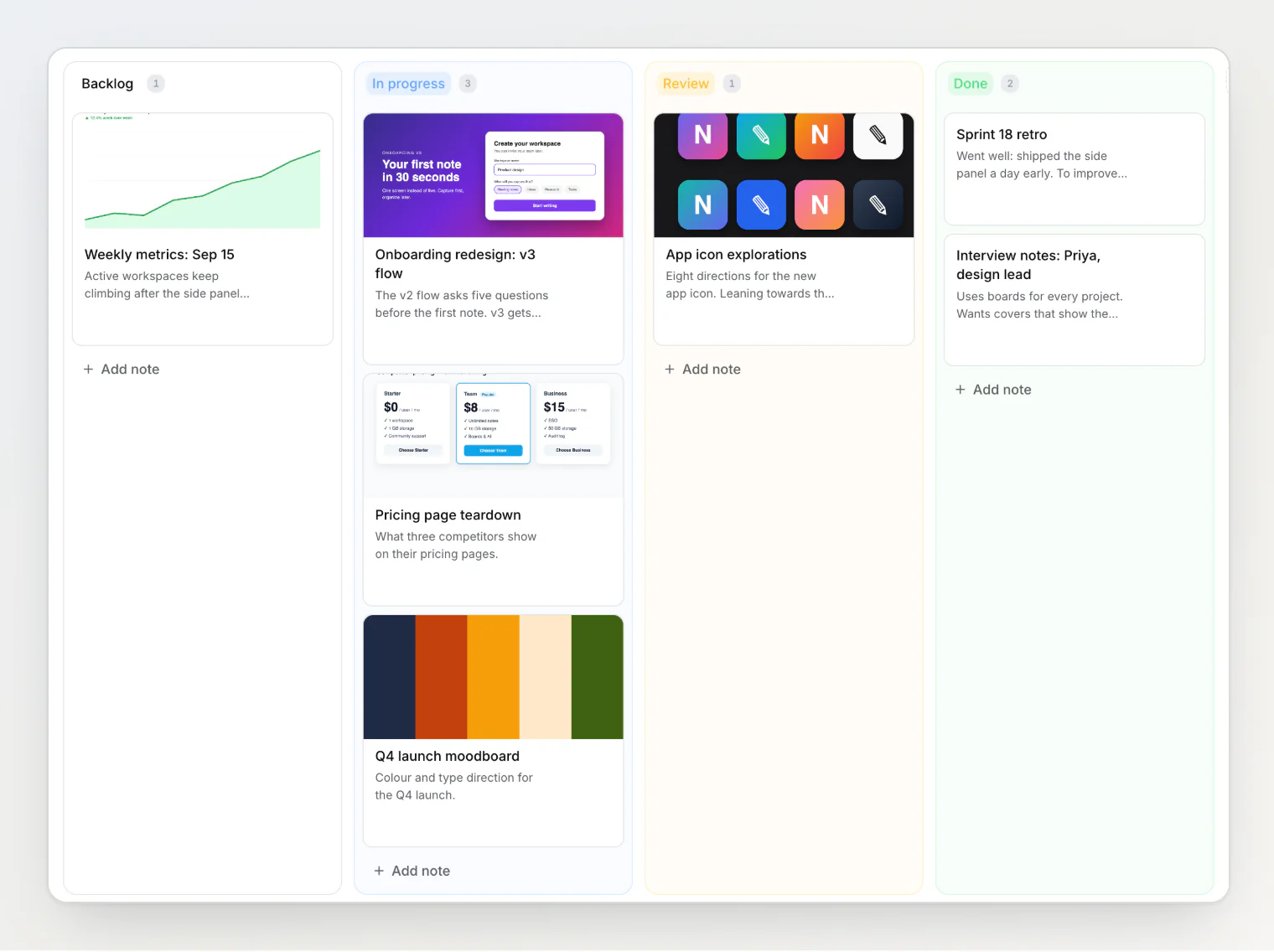
Changing a cover from a board card updates that card in place. The board does not reload, and your scroll position stays where it was. Covers also work with pasting screenshots into a column's quick-add box: the pasted image is the new card's cover, and you can pick a different one later.
Built to stay out of the way
A few decisions keep covers from surprising you:
Picking a cover is not an edit. The note's last-modified time stays the same, so a note does not jump to the top of a list sorted by last updated just because you changed its picture. No new version is saved either.
A cover never breaks. If you delete the image you chose, the card goes back to the note's first image instead of showing an empty frame. Undo the deletion and your choice comes back.
Automatic keeps following the note. Add a new first image and an Automatic card shows it. A chosen image stays chosen, wherever you move it in the note.
Everyone sees the same cover. In a shared workspace, the cover belongs to the note, so every member sees the card the same way.
Try it
Open any note with more than one image, choose Cover image in its menu, and pick the one you want on the card. The full details are in the help article Choosing a note's cover image.
Continue reading
Paste a screenshot, get a kanban card: cover images in one keystroke — a screenshot pasted into a column's quick-add box becomes the new card's cover image.
Add a screenshot to an existing note without opening it — a file pasted while you rename a note in the list goes to the end of that note.
Beyond folders: how Notez organizes notes — why Notez has no folders, and what tags, sub-notes, boards and custom properties do instead.