Notez imports from three sources: a Notion export (.zip), an Evernote export (.enex), and Obsidian / Markdown, which is an Obsidian vault or any folder of Markdown files, zipped. An export from Notez itself is a folder of Markdown files too, so it imports back through Obsidian / Markdown.
Get the file out of the other app
In Notion, open Settings, and under General click Export all workspace content. Set the export format to Markdown & CSV and include everything, files and images too. Notion emails you a link to the .zip. A Notion export in HTML or PDF imports nothing, because Notez reads only the Markdown files.
In Evernote, right-click a notebook and choose Export notebook…, or select notes, right-click and choose Export notes…. Pick the ENEX format (.enex).
In Obsidian there is nothing to export: the vault is already a folder of Markdown files. Zip the vault folder. The same goes for any other folder of .md files.
Run the import
At the bottom of the sidebar, click More.
Click Import & export. The page opens on Import.
Under Source, choose Evernote, Notion or Obsidian / Markdown.
Under File, click Choose… or drop the file on the box.
Click Import.
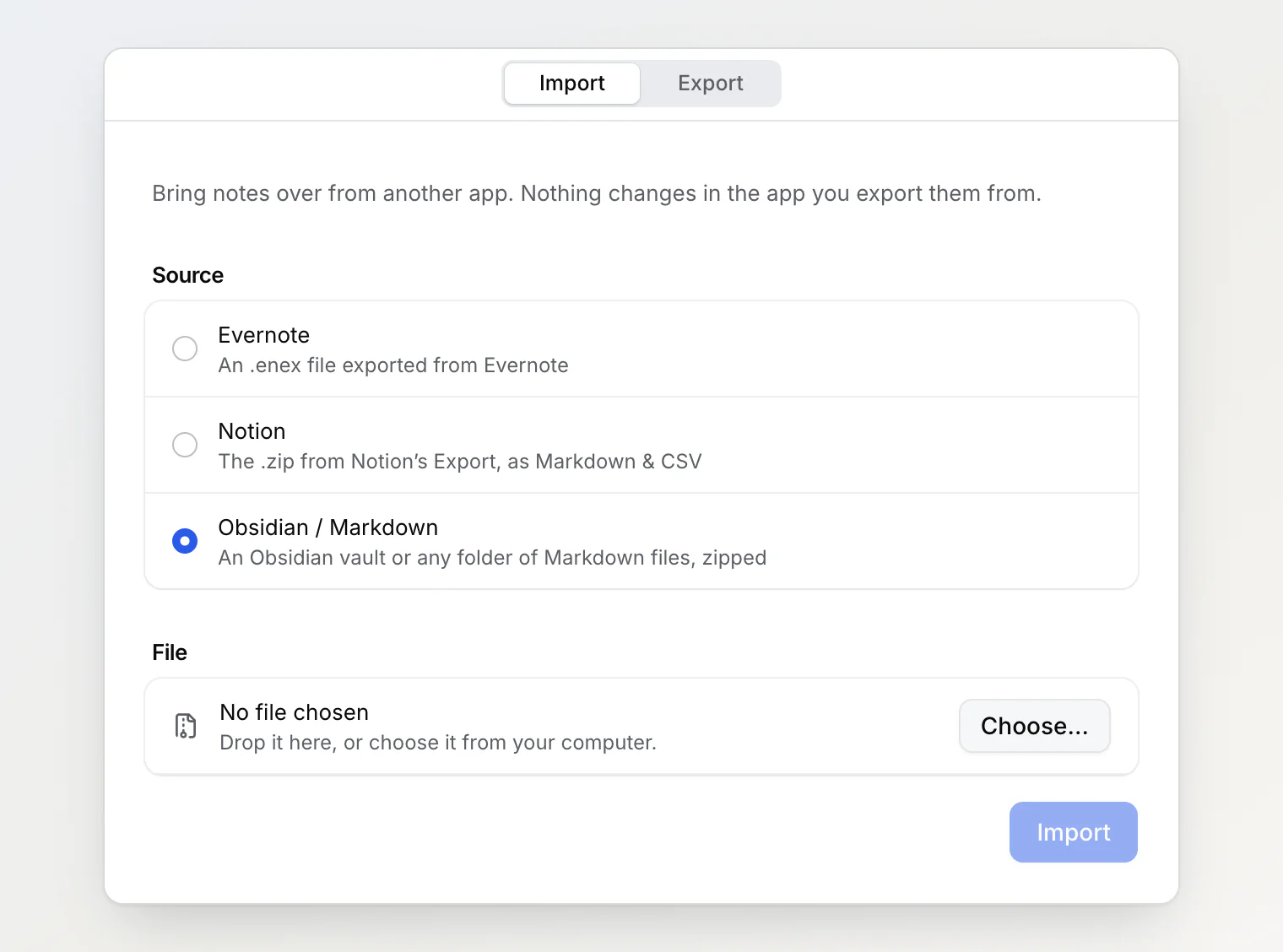
The file uploads first. Once the status reads Preparing…, the import runs on the server and you can close the tab. If you come back while it is still running, the page shows its progress: Reading your export…, Estimating size…, Importing notes…, then Import complete.
What each source keeps
Notion ( | Evernote ( | Obsidian / Markdown ( | |
|---|---|---|---|
Note content and formatting | Yes | Yes | Yes |
Attachments | Yes | Yes | Yes |
Pages or folders as sub-notes | Yes | No | Yes |
Tags | No | Yes | Yes |
Links between notes | Yes | No | Yes |
Original creation date | No | Yes | Yes |
The last-modified date of every imported note is the time of the import.
Headings, lists, tables and quotes carry over from every source. Checklists carry over from Evernote and Markdown, but Notion's to-dos arrive as plain bullet points. Code blocks carry over from Notion and Markdown, but Evernote's arrive as plain paragraphs.
Attachments appear as images and file chips in the notes that use them. If Notez can't take a file (bigger than your plan allows per file, 25 MB on Free, or an SVG or HTML file), the note shows Attachment not imported: and the file name in its place.
Each row of a Notion database becomes a note, with its column values as lines of text at the top. The rows arrive as top-level notes, not under the page that held the database, and the columns don't become custom properties.
How an Obsidian vault comes across
In the vault | In Notez |
|---|---|
A | A note, titled with the |
A folder | Its notes become sub-notes of the note with the same name beside it ( |
| Tags |
| The creation date; without it, the file's last-modified date |
| Note links; a link that matches no note, or more than one, stays text |
| Images and attachments; files no note links to are left out |
Callouts | Note, Tip, Important, Warning or Caution callouts; other types become the nearest one ( |
Hidden folders such as .obsidian and .trash are skipped. Other front matter doesn't come across: a status, a Priority or a pinned: true from a Notez export doesn't turn back into a board column, a property or a favorite.
Limits
Limit | Value |
|---|---|
File size | 200 MB; 25 MB on the Free plan |
Files in the archive | 10,000 |
Size after unzipping | 1 GB |
One file in the archive | 100 MB |
Notes per import | 50,000 |
An import counts against your plan's storage and its note limit, and in a shared workspace against the owner's. If an import would go over the storage, it stops with Import exceeded your storage limit before it writes anything; a member sees Import exceeded the workspace owner's storage limit. The note limit isn't checked in advance: once the workspace reaches it (1,000 notes on Free), the remaining notes fail, and retrying won't help until you make room.
For a larger archive, export from the other app in parts and import them one after another. A link from one part to a note in another part won't become a note link, so keep linked pages in the same part.
If something goes wrong
If some notes fail, the import ends with Import finished with some errors and the counts of imported, failed and skipped notes. Show failed notes lists each one with the reason, and Retry failed notes runs the import again and creates only the notes that are still missing.
Right after an import, Undo import moves the notes it created to the Bin and marks the job Import undone. For an earlier import, open the ••• menu on its row under Import history and choose Delete: it moves that import's notes to the Bin and removes the record. Their attachments keep using storage while the notes are in the Bin and go when the notes are deleted for good, with Empty trash or after 30 days. Tags the import created stay; delete them by hand.
Import history lists your imports into this workspace with their counts.
Importing the same export into the same workspace again skips the notes already there, from any source. Notion pages match by page id, Obsidian notes by file path, and Evernote notes by title and text, so a renamed Obsidian file or an edited Evernote note comes in as a new note. Notes in the Bin don't count: after Undo import, importing again brings everything back.
After importing
Imported notes carry an Import badge. Notez also builds their search index, so semantic search and Similar Notes cover them. For a large import this takes a while and uses embedding tokens from the workspace owner's monthly allowance; if the allowance runs out, the remaining notes stay out of semantic search and Similar Notes until each one is edited. See Storage and AI limits.
Continue reading
Export your workspace — download every note as Markdown files with their attachments.
Organizing notes: tags, nesting, boards, and favorites — what imported sub-notes and tags turn into.
Using AI chat — fill in properties across imported notes.