Press ⌘K to search — or, on any app page with nothing focused, just start typing a letter.
Hybrid search
Notez runs two searches at once and merges the results:
Keyword search — substring matching on titles and content
Semantic search — vector search that matches on meaning
This matters as your archive grows. Keyword search fails exactly when your notes get valuable, because you no longer remember the words you used. Semantic search finds the note about "the deployment thing that broke over the holidays" even if none of those words appear in it.
Search also matches tag names and the values of text, URL, email, and phone properties, plus select and multi-select option labels.
Searching by keyboard
Shortcut | Action |
|---|---|
| Focus search |
| Navigate suggestions |
| Create a note from the typed text, or run the highlighted suggestion |
| Save the typed text as a note (works without the suggestions too) |
| Close suggestions, then clear the search |
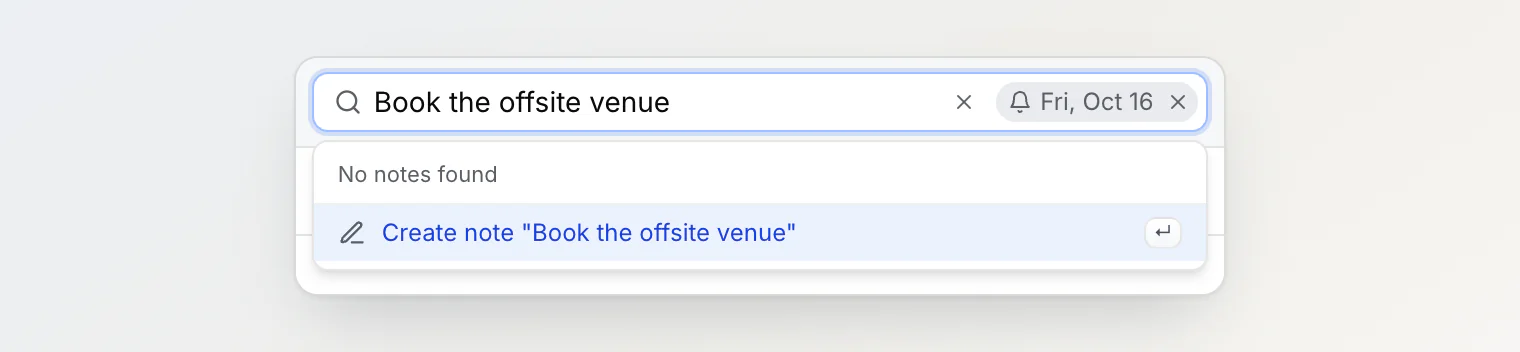
Results update as you type — there is no "run search" step, which frees ↵ to mean create: the Create note suggestion is highlighted by default, and ↵ saves what you typed as a note (with Undo on the toast). Use ↑ ↓ to run a recent search instead.
The top line of the suggestions shows the search's state as you type — Searching..., then 3 notes found or No notes found — and the page title says the same until you clear the box.
Typing a letter anywhere in the app jumps into the search box — except on an open note, inside the note side panel, and on the CLI sign-in page. Space and / are excluded — / opens the new note dialog instead.
Reading the results
Click a result and it opens in a side panel over the results, which stay exactly as they were. From there J and K step down and up through the result list, so you can check five candidate notes without running the search again for each one.
Refining the query while the panel is open keeps it open — the note you are reading stays put while the list behind it re-filters. See Organizing notes for the rest of the panel's behaviour.
Capture from the search box
↵ saves what you typed as a new note — the Create note "..." suggestion is highlighted as soon as you type. ⌘↵ does the same without the suggestions. The toast has Undo and Open.
This closes a loop that normally leaks ideas: you search for something, find it does not exist, and capture it right there instead of losing the thought. It works in the Bin too — the note lands in All notes, and the toast says so.
Type @ in the box to add a reminder, a mention or a note link to the note you are about to create. The list offers Dates, People (in a shared workspace) and Notes, and ↵ picks the highlighted one. A pick becomes a small chip next to the box that you can remove before saving, and what you typed stays the title; a person you pick is notified, as with a mention in a note. A date typed in full needs no picking: Call Anna @tomorrow-9am saves "Call Anna" with a reminder for 9:00 tomorrow.
More on reminders in Reminders and the calendar.
Recent searches
A search is remembered as a recent when you leave the box, and offered as a suggestion next time. Remove any individually with Remove from recent searches.
Filters
Beyond the search box, the notes list filters by:
Tags
Custom properties — up to 10 filters, ANDed together
The sidebar — click a tag, a board column, a person, or a property option in one of its sections; it writes the same filter the popover does
The Bin — its own view for deleted notes
Sort by created date, updated date, title, or a custom property. A Clear button appears when filters or sorting are active.
Filters and sort live in the URL, so a particular slice can be bookmarked. The note open in the side panel is in the URL too. Your view mode (Table, Grid, Board) is remembered separately in the browser rather than in the URL.
Sub-notes are hidden from the main list by default so it stays readable; applying any filter reveals matching notes at every level.
There are no saved views in this version — bookmarking the URL is the workaround.
Similar Notes
Every note has a Similar Notes panel showing up to five related notes with a similarity score ("87% similar to this note").
Nothing is required from you — no tags, no manual links. Relatedness is computed from the writing itself, which makes this the feature most likely to surface something you had forgotten you wrote.
If it is empty you will see: "No similar notes found — notes with related content appear here automatically." Usually that means the note is very short, or very new and not yet indexed.
AI chat and assistants connected over MCP can run the same search: ask "which notes are similar to this one?", and they can narrow it by tags or property values too.
Similar Notes vs. linked notes
Two different systems:
Linked notes — explicit connections you create by typing
[[. Records connections you know about.Similar Notes — automatic, semantic, always on. Surfaces connections you do not.
Why is a note missing from results?
Wrong workspace — search is scoped to the current one
Recently imported or created — semantic indexing may not have caught up; keyword search still works immediately
It is in the Bin — deleted notes are excluded from search; open the Bin to find them
A filter is active — use the Clear button
Under the hood
Semantic search uses text-embedding-3-small embeddings (1536 dimensions), with notes chunked and indexed using pgvector HNSW. Indexing consumes embedding tokens from your monthly allowance — see Plans, limits, and billing.