A reminder is a date written into a note. When it comes due, Notez sends you a notification with the note's title, and the Calendar page shows it next to every date property in your workspace.
Add a reminder
In a note, type
@. With nothing typed after it, Dates offers Today, Tomorrow, In 1 hour and Pick a date….To get another day, type it after the
@:@frioffers Next Friday,@2026-12-24that exact day.To set a time, add it at the end:
@tomorrow-9am,@fri-3pm,@2026-12-24-18:30.Click the date under Dates, or press Enter.
The reminder appears in the text as a chip with a bell and its date. A space closes the menu, so join words with hyphens. Type the words in the language the app is set to.
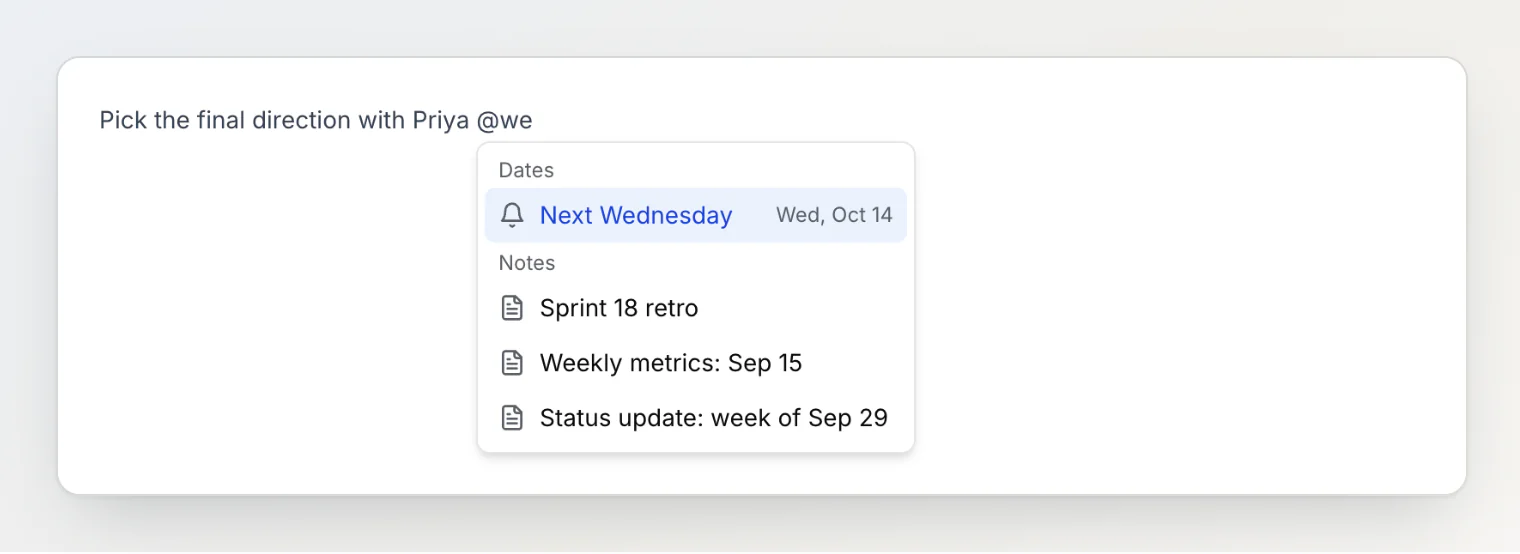
The same menu links notes (under Notes) and, in a shared workspace, mentions people (under People). If a word in a person's name starts with what you typed, Enter picks the person, so @tom mentions Tom rather than setting a reminder for tomorrow.
You can also type / and choose Reminder: it adds a reminder for tomorrow and opens its settings.
Write what the reminder is for in the same line. The notification shows only the note's title, so a line like "Send the contract back" next to the chip is what tells you, a week later, why you set it.
Change a reminder or make it repeat
Click the chip.
Pick another day in the calendar, set a Time, or choose an option under Repeat.
A repeating chip shows a repeat icon after its date. To delete the reminder, click Remove.
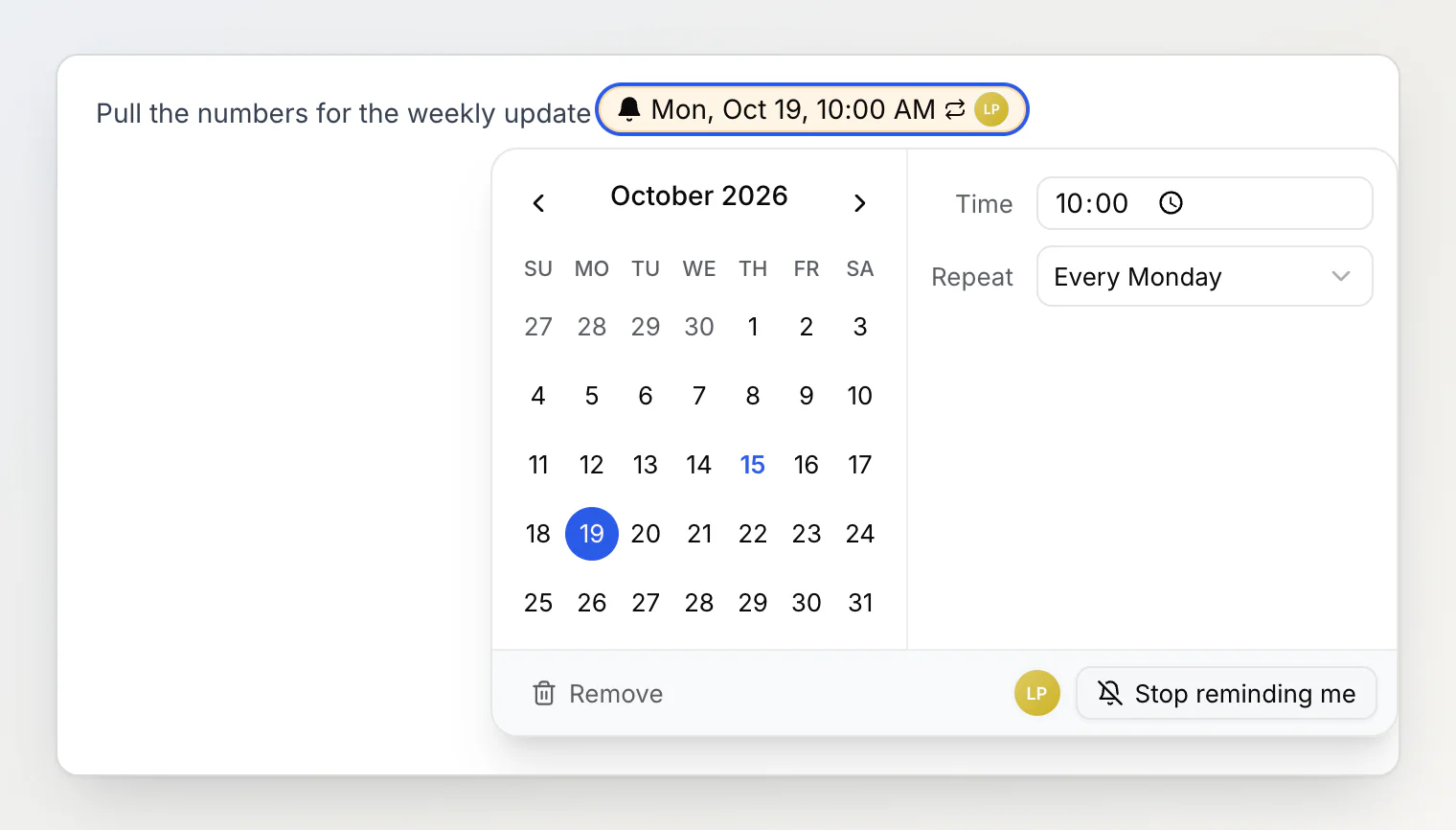
The Repeat list offers Daily, every week on the reminder's weekday (Every Monday), Every weekday (Monday to Friday), monthly on the same day, and annually on the same date. Custom… covers the rest: every few days, weeks, months or years, several weekdays, a weekday of the month such as the second Tuesday, and an end, either On a date or After a number of occurrences. Does not repeat makes it a one-off again.
A repeating reminder is one chip. Changing its date, time or rule changes every occurrence, and there is no way to skip or move a single occurrence. A reminder without a time notifies at 09:00.
Times belong to the time zone of the person who set the reminder. If you open the note in another time zone, the chip adds the zone after the time.
When a reminder comes due
You get a notification titled Reminder, with the note's title:
in the bell at the top of the app;
by email, if email notifications are on in your settings;
as a system notification while the Mac app is open. A browser tab shows one only if you have allowed notifications for notez.dev in the browser's settings; Notez does not ask.
Clicking it opens the note. See Notifications and languages for the settings.
A one-off reminder whose time has passed never notifies, and its chip turns grey. Today without a time means 09:00, so after 09:00 add a time: @today-5pm. If Notez was down when a reminder came due, it is still sent within 24 hours of its time and skipped after that. Moving a note to the Bin stops its reminders, and deleting the chip deletes the reminder.
Copies of a reminder in one note, with the same date, time and repeat, send one notification between them. You get at most 20 reminder notifications a day from one note and 50 a day in all, counted over the last 24 hours. Once you reach either limit, a reminder that comes due is skipped for you: nothing reaches the bell or your inbox, and it isn't sent later.
The Calendar page
Open Calendar in the sidebar, under Home. It shows one month: the reminders that remind you, with every occurrence of a repeating one, and the value of every date property in the workspace, such as a Due date, each property in its own color. Copies of a reminder in one note show as one item.
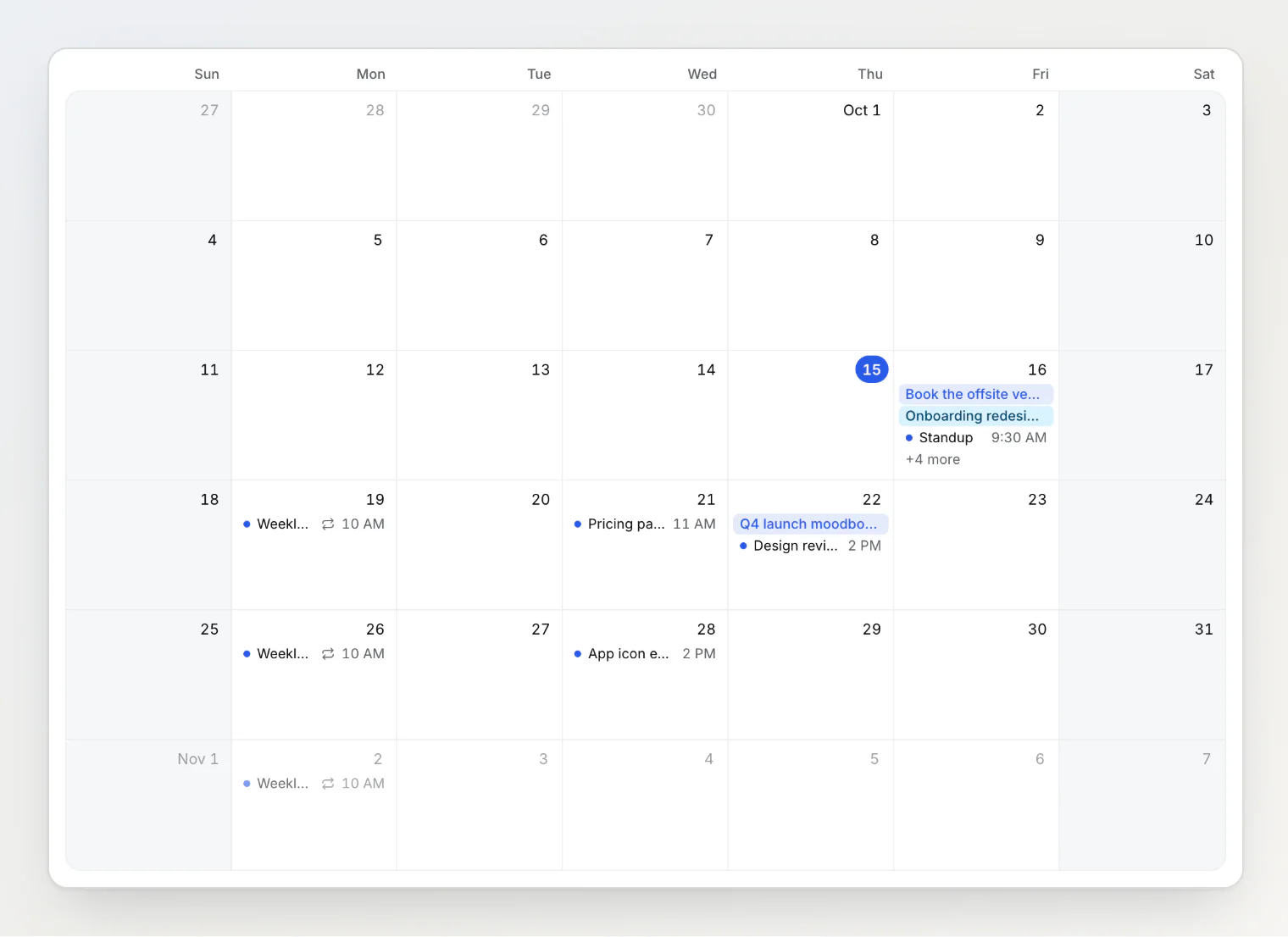
Click an item to open its note in the side panel, which shows the note next to the calendar without leaving the page. J and K step through the month's notes.
Drag a one-off reminder or a date property value to another day to move it. ⌘Z moves it back. A repeating reminder cannot be dragged: change it in its note.
A day with more than four items shows three and a +N more button. Click it and the day opens over the calendar with everything on it. Drag an item from there to another day, including one the open day covers. Esc or a click outside closes it.
The + at the top of the calendar (New reminder), or the one that appears when you point at a day, opens a form: type what to remind you about, set the day, time and repeat, and click Create. Notez creates a short note with that title, holding the reminder.
Today brings you back to the current month.
On a phone, the calendar is a list of the month's days that have something on them.
See your reminders in Google Calendar or Apple Calendar
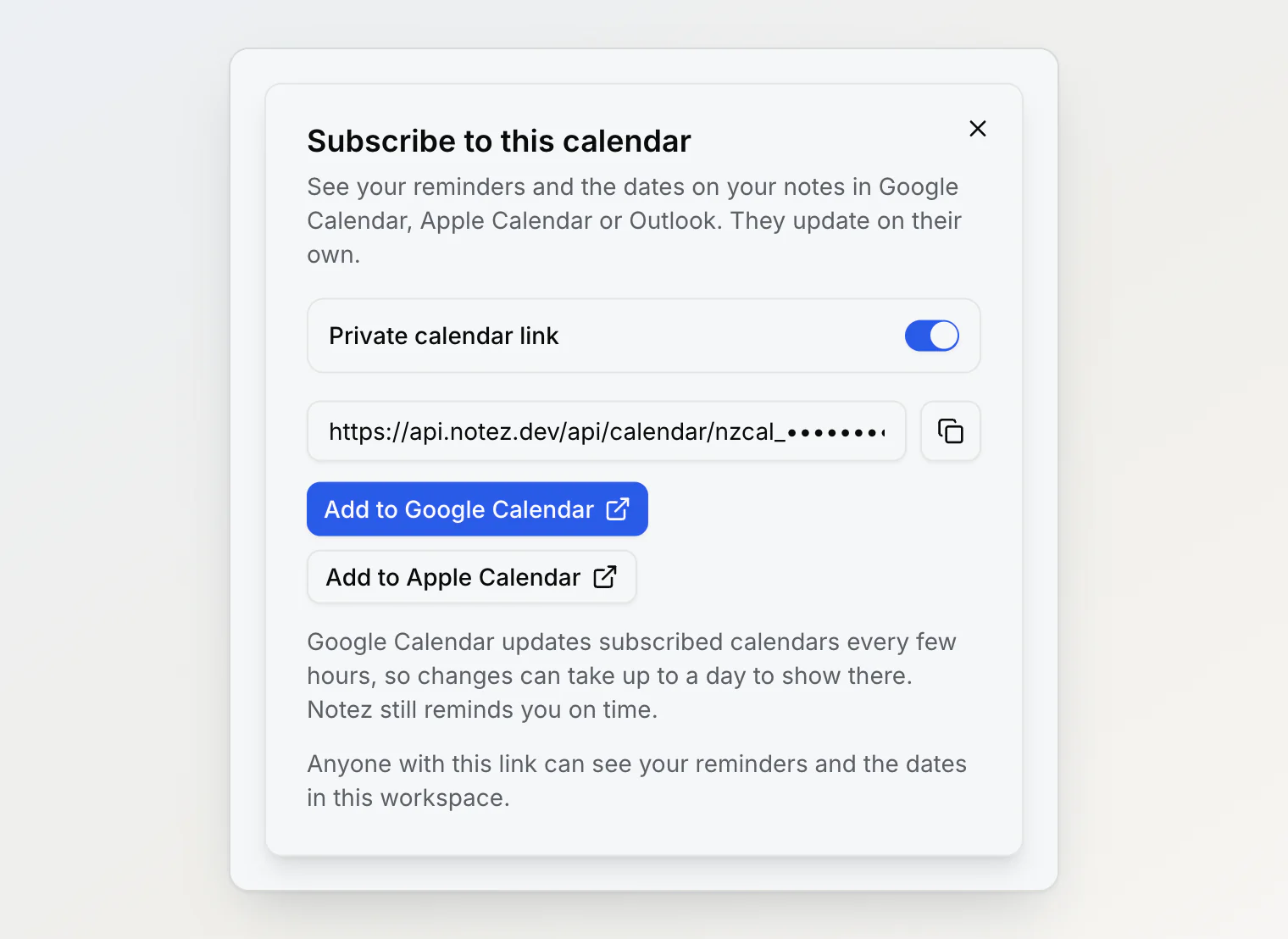
You can turn on a private link to your calendar in each workspace, and a calendar app subscribes to it.
On the Calendar page, click the feed icon next to +. Its tooltip reads Subscribe to calendar.
Turn on Private calendar link.
Click Add to Google Calendar or Add to Apple Calendar. For Outlook or another app, copy the link and add it there as a calendar from the web (in Outlook: Add calendar, then Subscribe from web).
Guests do not see the feed icon: the link needs an account.
The calendar app then shows what the Calendar page shows: the reminders that remind you in this workspace and its date property values, from 30 days back to a year ahead. A reminder with a time is a 15-minute event. Without a time it is an all-day event, and so is each date property value. A repeating reminder appears as a separate event for each occurrence. Each event carries its note's title, with the property name in front for a date (Due: Launch plan), and a link to the note. The calendar app does not alert you; the notification still comes from Notez.
It works one way: the calendar app shows these events read only, and you change them in Notez.
Google Calendar refreshes subscribed calendars on its own schedule, every few hours, so a change in Notez can take up to a day to show there.
Anyone with the link can see these reminders and dates. To stop it, turn Private calendar link off and click Turn off the link. The link stops working at once. The calendar app keeps the last copy it fetched, so remove the calendar there too. Turning the link on again gives you a new one. You have a separate link in each workspace, and it is deleted when you leave the workspace or the owner removes you.
Add a reminder without opening a note
Type @ in the search box at the top, or click Add note under a board column and type @ in the box that opens. The same menu opens, without Pick a date…. A date you pick becomes a small chip with a bell next to the box, and its × removes it; press Enter and the note is created with your text as its title and the reminder in its body.
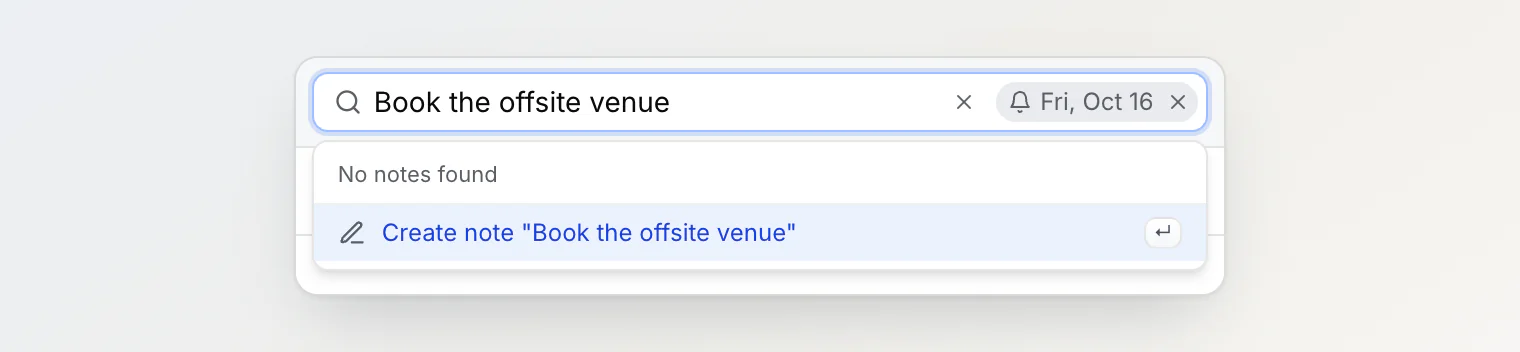
A date typed in full works without picking it: Call Anna @tomorrow-9am creates "Call Anna" with a reminder for 9:00 tomorrow. The same goes for the address bar: open notez.dev/Call Anna @tomorrow-9am while signed in. Text you paste with ⌘V while nothing is focused is saved as a note as it is, so an "@today" inside a pasted log stays text. More on these inputs in Quick capture and bookmarks.
Reminders in a shared workspace
In a shared workspace, one reminder can remind several people. Whoever adds it is reminded, and the chip shows the avatars of everyone it reminds. Its bell is filled when it reminds you.
To be reminded by someone else's reminder:
Click the chip. If it doesn't remind you, pointing at it shows Click to edit or get reminded too.
Click Remind me too at the bottom right of its settings.
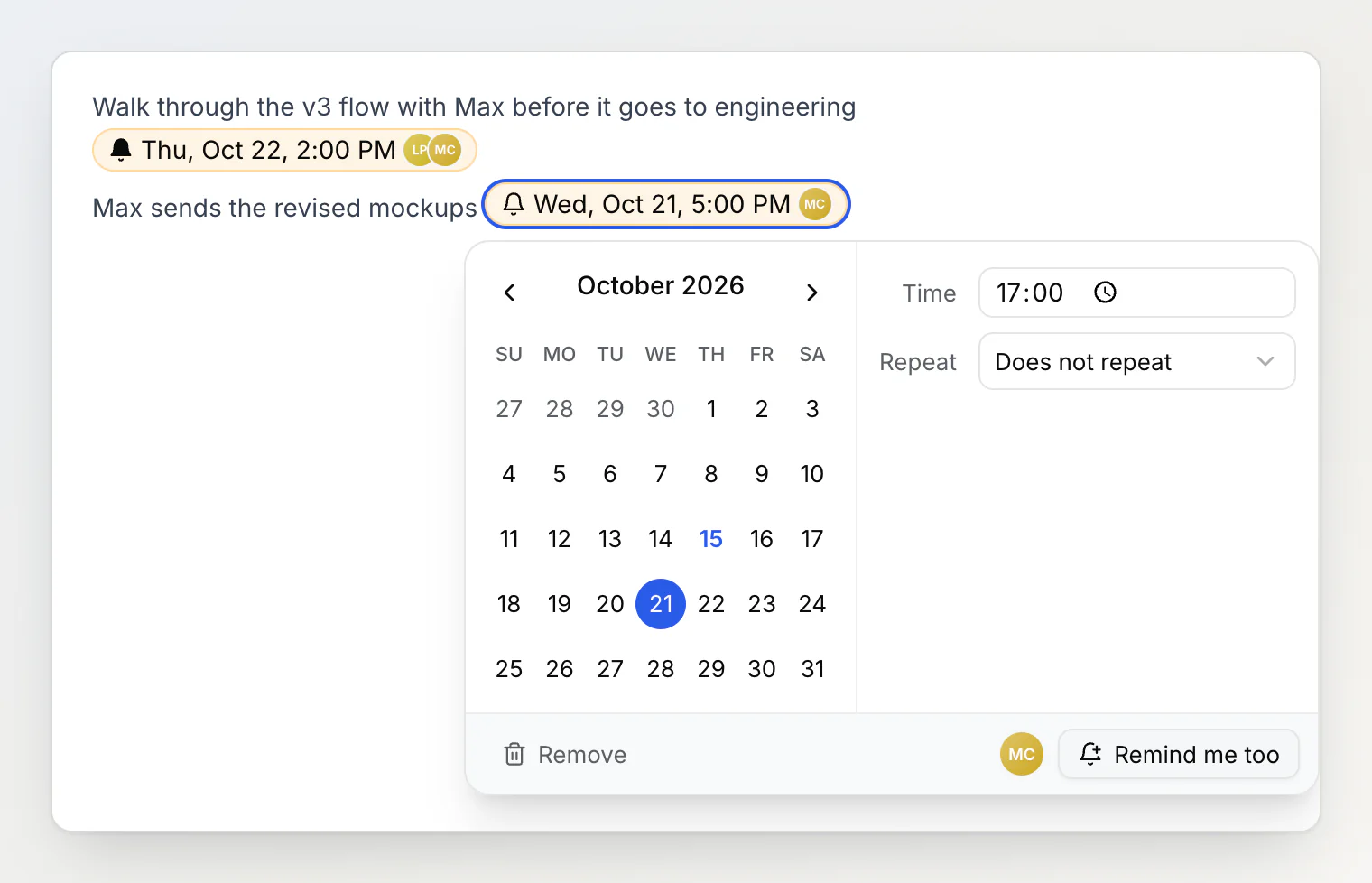
The reminder now notifies you too, and it shows on your Calendar page and in your private calendar link. Stop reminding me in the same place takes you off. Point at the avatars next to it to see the names under Who gets reminded. You add or remove only yourself: you can't put someone else on a reminder.
The chip is part of the note, so anyone who can edit the note can change its date, time or repeat, or delete it, and the change applies to everyone it reminds. For 30 days, undo or restoring an earlier version of the note brings a deleted chip back with the same people.
A member who leaves the workspace, or whom the owner removes, stops being reminded; the reminder stays for the others. On the Calendar page, everyone sees the reminders that remind them and the same date property values.
Asking AI chat or an assistant
AI chat can read your calendar and add reminders. Ask "What is on my calendar this week?", or "Remind me to call Anna on Friday", which creates a short note such as "Call Anna" holding the reminder. On the Calendar page, AI chat knows which month you are looking at. Claude, ChatGPT and other apps connected over MCP have the same get_calendar tool. If the app does not know your time zone, it takes it from your existing reminders or asks; a reminder without one fires on UTC time.
A reminder an assistant adds reminds you. It can't add other people to a reminder, and when it changes a reminder in a shared workspace, the change applies to everyone it reminds.
What reminders do not do
There is no two-way sync with Google Calendar or Outlook: the private calendar link shows your reminders and dates there, read only.
You cannot add someone else to a reminder. Each person clicks Remind me too themselves.
The calendar has a month view only, with no week or day view.
Nothing repeats more often than daily.
A note holds at most 50 reminders.
Continue reading
Quick capture and bookmarks — every way to save a note without opening one, including from the address bar.
Custom properties — add a date property such as Due and it shows on the calendar.
Using AI chat — what AI chat can read and change, including your calendar.