Press ⌘J to open AI chat. It is connected to your notes in the current workspace, not a general-purpose chatbot.
It can see the screen you are on
Every question carries a short description of what you have open: the view you are in, which board, whether you are in the Bin, the search term and tag filters you have applied, the note in the side panel, the cards you have selected, and the month on the Calendar page.
The chips under the conversation spell out exactly what chat can see — Board view, Calendar, This note, 3 selected. If a chip is not there, chat does not know about it.
So "this note", "these", and "here" all work without naming anything, and the suggested questions change with the screen: on a board they become What are my tasks today?, What is in progress?, and What did I finish this week?
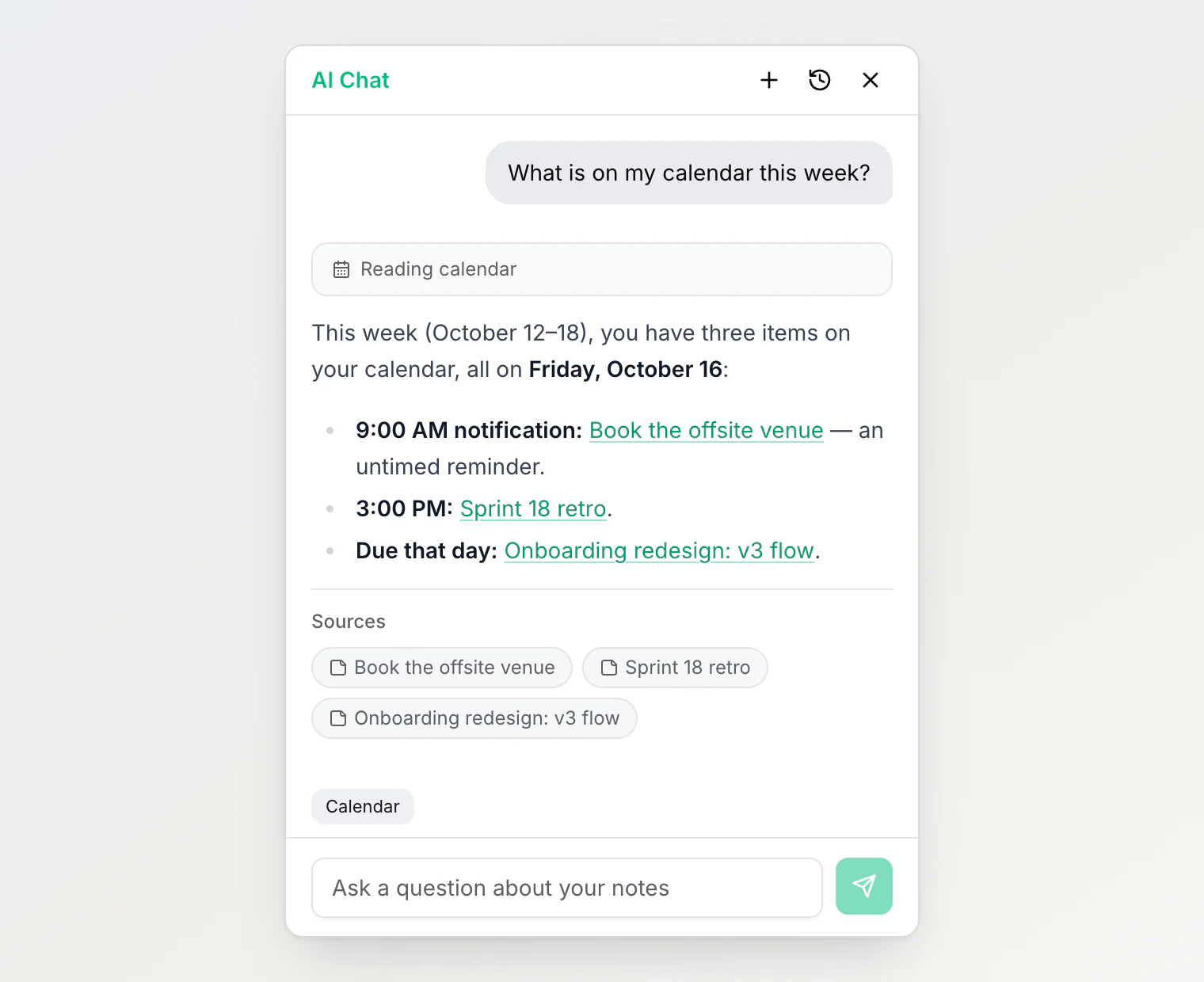
On the Calendar page chat knows which month you are looking at, so "this month" means that month, and the suggestions become What is on my calendar this week?, What is due this month?, and Which of my reminders repeat?
Tasks are the cards on your board
Notez has no separate to-do entity — no Task type and no built-in due date. When you ask about tasks, to-dos, what to work on, or what is in progress, chat reads the board you are looking at (or the workspace board, if none is open) and treats its cards as the answer. A column whose name means finished — Done, Completed, Archived — is not counted as pending, and chat says so rather than silently dropping it.
For what is on today or this week, chat also reads your calendar for that range: the reminders that remind you and every date property value, so a card with a date property such as Due counts for its day. A reminder has no done state, so one that has passed is not counted as overdue. For overdue work chat looks for date property values that have passed, leaving out cards in a finished column.
What it can do
Find things
Keyword search and semantic (meaning-based) search, including "notes like this one" starting from a note
One listing tool with filters that combine: tags, board columns, custom property values, note type, favorites, top-level only, the Bin, and created or updated date ranges
Date ranges use your timezone, so "today" means today where you are
List recent notes, with a true total so counting is one call
Search the Notez Help Center, for questions about how Notez itself works
Understand your workspace
Read a whole board, grouped by column, with a total per column
Read your calendar for up to 62 days at a time: the reminders that remind you, each occurrence of a repeating one, and every date property value
Read a specific note, including one you point it at by pasting its link, and say who added it, when, and how it arrived
Walk the note tree — children and ancestors
List what a note links to, and which notes link to it
List your tags and custom properties, and read a note's property values
Change things
Create notes, plain text or Markdown — optionally nested under an existing note
Rename a note
Edit part of a note's body, leaving the rest exactly as you wrote it
Create tags, rename them, and replace the tags on a note
Create a custom property, add options to it, rename it, and set a value on a note
Create board columns and rename them
Add a note to favorites, or remove it
Move a note under another note, or back to the top level
Move a note between board columns
Set a reminder: asked to remind you of something, it creates a short note titled with what to remember, holding the reminder, or adds the reminder to a note you point at
Move or remove a reminder by editing its note
Move a note to the trash, together with everything nested under it, and bring it back from the trash
Asking about what you have selected
Select cards on a board and the selection bar offers Ask AI, which opens chat already pointed at them. An open note has the same button in its header. Either way the chips show you what came across.
To ask about a note that is not on screen, paste its link into your question: Copy link in the note's ⋯ menu. Chat reads that exact note and lists it under the answer as a source. A link to a note in another of your workspaces gets a reply saying so — switch to that workspace and ask there.
While an answer is streaming, the send button becomes a stop button. Stopping ends the answer immediately; nothing partial is kept, so ask again rather than looking for it later.
Custom instructions
Give chat standing instructions so you do not repeat yourself every conversation. The workspace owner sets rules for everyone in Settings → Workspace, and each person adds their own in Settings → My settings. Where the two conflict, the workspace's win.
See AI chat instructions for examples and the details.
What it cannot do
Worth knowing before you ask:
Cannot delete anything permanently. It can move notes to the trash; emptying it is a decision only you can make.
Cannot delete a tag, property, option, or board column. It can create them and rename them, but removing one erases data on every note that used it, so that stays in the app.
Cannot reorder a board beyond moving a card into a column.
Its calendar leaves out reminders that remind only other members. Like the Calendar page, it lists the reminders that remind you and every date property value in the workspace; a note's text still shows every chip. It can't add other people to a reminder either.
Cannot change one occurrence of a repeating reminder. A repeating reminder is one chip, so a change moves the whole series, and chat says so before making it.
Cannot upload files. It runs in your browser and cannot reach files on your computer. Add them in the editor — or ask an assistant that can run shell commands to do it over MCP.
The line is reversibility, not caution: every change chat can make is one you can undo. Body edits and renames are snapshotted, so Version history rolls them back, and a trashed note sits in the Bin until you empty it. What stays with you is the irreversible part.
Deleting is the one action to watch. Chat will name the note and ask before trashing it, and it will tell you how many nested notes are going with it — a note with children takes its whole subtree. If you did not mean it, ask chat to bring it back, or restore it from the Bin yourself.
The MCP server offers the same 29 tools — same names, same arguments — plus two for uploading images and files, which need a shell that chat does not have. A test fails the build if the shared tools drift apart. An app you connect by signing in also gets list_workspaces, and most of its tools take one extra argument, the workspace, because it can reach every workspace you belong to. The other difference is that an MCP client has no browser to report a timezone, so its date ranges resolve in UTC, and to set a reminder it uses the time zone the app knows, else the one on your existing reminders, else it asks you.
Prompts that work well
Finding
"What have I written about focus and deep work?"
"Find all my notes tagged research and summarize the top three."
"What did I decide about the database migration, and why?"
Tasks and boards
"What are my tasks today?"
"What is in progress?"
"What did I finish this week?"
"How many notes did I create today?"
"Set up a board for Project Apollo with Backlog, Doing, and Done, and put these notes on it."
Reminders and the calendar
"What is on my calendar this week?"
"What is due this month?"
"Remind me to call Anna on Friday at 10."
"Move my reminder about the offsite venue to Monday."
Organizing in bulk
"Tag everything mentioning pricing with the pricing tag."
"Set Status to Done on the notes in my Done column."
"Move anything in Doing I have not touched this month back to Backlog."
Creating and filing
"Create a note titled Weekly Review with sections for wins, blockers, and next week."
"Add a note called Q3 Budget under my Project Apollo note."
"Add the note I was just reading to my favorites."
"Move my meeting notes from last week under the Meetings note."
"Rename this note to Q4 roadmap: launch plan."
"Bring back the pricing note I deleted this morning."
Exploring structure
"What tags do I use most?"
"What properties exist in this workspace?"
"Who added this note, and what links to it?"
"Which notes are similar to this one?"
Links in responses
Notes and tags in a reply are rendered as clickable links, so you can jump straight from an answer to the source.
Conversations
Chat history is kept, so you can return to an earlier thread. Each conversation holds up to 100 user messages, and the model sees the last 10 messages for context. Conversations are automatically cleaned up after 90 days.
For an unrelated question, start a new conversation rather than continuing a long one — it keeps context relevant and uses fewer tokens.
Limits
Free | Pro | Ultra | |
|---|---|---|---|
AI chat tokens / month | 200,000 | 2,000,000 | 20,000,000 |
AI embedding tokens / month | 500,000 | 5,000,000 | 50,000,000 |
Also: 10 chat requests per minute, up to 5 tool rounds per message, and 4,000 tokens per answer.
When a question uses up its tool rounds, chat answers from what it has and tells you what it did not get to check, rather than guessing at the rest.
Track usage in Settings → Billing, which shows progress bars and a reset date for the calendar month. You are notified as you approach a limit.
Embedding tokens are consumed when notes are indexed for semantic search — including a large batch after an import. Chat tokens are consumed by conversations.
Scope and privacy
AI chat only sees notes in the current workspace. Switch workspaces to change what it can reach — see Workspaces.
If answers seem to miss notes
Check the workspace. The note may live in another one.
Newly imported notes need indexing before semantic search finds them.
Be specific about scope — "search all my notes for X" rather than assuming.
Try search directly with
⌘K; if hybrid search cannot find it, chat will not either.