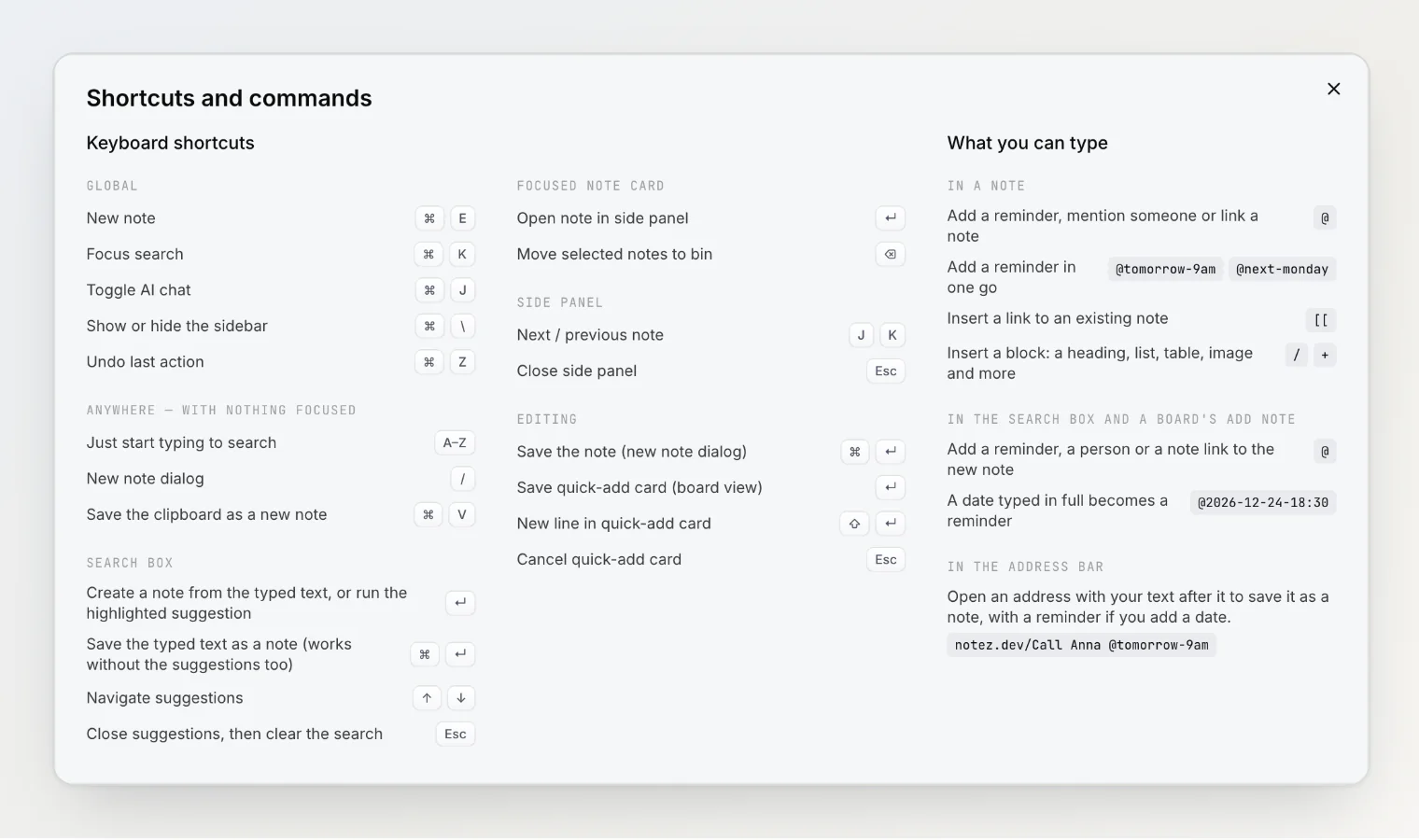
A reference for the keyboard shortcuts in Notez. In the app, Shortcuts in the sidebar, or its button on the collapsed sidebar, opens a similar list in the Shortcuts and commands dialog, next to what you can type.
On Windows and Linux, use Ctrl wherever ⌘ appears.
Global
These work on any page in the app, whenever you are not typing in a text field.
Shortcut | Action |
|---|---|
| New note |
| Focus search |
| Toggle AI chat |
| Show or hide the sidebar |
| Undo last action |
| Open the new note dialog |
| Save the clipboard as a new note (text or files) |
| Start typing to search |
Typing letters, /, and ⌘V are suppressed on the note detail page, inside the note side panel, and on the CLI authorization screen, where keystrokes mean something else.
⌘V saves a note immediately; the toast that follows has Undo and Open. Typing lands in the search box, where ↵ creates a note from what you typed.
Search box
Shortcut | Action |
|---|---|
| Create a note from the typed text, or run the highlighted suggestion |
| Save the typed text as a note (works without the suggestions too) |
| Navigate suggestions |
| Close suggestions, then clear the search |
Type something, discover it does not exist, and press ↵ — the Create note suggestion is highlighted by default, so the text is saved without leaving the box. Use ↑ ↓ to pick a recent search instead. A search is remembered as a recent when you leave the box.
Focused note card
Click a card to focus it without opening.
Shortcut | Action |
|---|---|
| Open the note in the side panel |
| Move selected notes to the Bin |
The multi-select delete asks for confirmation first, showing how many notes it will move. To favorite or bin a single card, use its menu — there is no single-key shortcut for either.
A plain ⌫ on its own does nothing — you need ⌘⌫ (or the Delete key). The in-app shortcuts dialog currently lists this as plain ⌫, which is a known inaccuracy there.
Note side panel
A plain click on a note in the list opens it in a side panel over the list. These work while your focus is inside the panel.
Shortcut | Action |
|---|---|
| Next note in the list |
| Previous note in the list |
| Close the panel |
J and K step through the list in the order you are looking at it, so the current sort, filter, or search applies. On the board they step through the open card's column, top to bottom. Opened from the Calendar page, the panel steps through the month's notes in the order the calendar shows them.
To open the note as a full page, use Open full page in the panel's toolbar.
Esc inside the title or the editor leaves that field first; press it again to close the panel. Closing the panel also works by clicking the seam on its left edge, or the ✕ in its toolbar.
Notes in the side panel are the full editor, not a preview — everything below works there too.
On a full-page note
A note opened as a full page has no shortcuts of its own. The star in the header adds it to Favorites; Version history and Move to trash live in the note's menu, and the back arrow closes the note.
This is deliberate: the note page is mostly a text editor, and the shortcuts it used to claim — including ⌘⌫ — collided with normal text editing. ⌘⌫ now does what it does everywhere else in a text field, deleting to the start of the line.
Editing
Shortcut | Action |
|---|---|
| Save the note (new note dialog) |
| Save quick-add card (board view) |
| New line in quick-add card |
| Paste images or files into a quick-add card, or into a title you are editing on a card or row |
| Cancel quick-add card or title edit, discarding anything pasted |
Text formatting
Shortcut | Format |
|---|---|
| Bold |
| Italic |
| Underline |
Press / in the editor for block types and callouts, and type [[ to link a note.
What you can type
The dialog's What you can type part lists what you type rather than press:
Where | Type | What it does |
|---|---|---|
In a note |
| Add a reminder, mention someone or link a note |
In a note |
| Add a reminder in one go |
In a note |
| Insert a link to an existing note |
In a note |
| Insert a block: a heading, list, table, image and more |
Search box, a board's Add note |
| Add a reminder, a person or a note link to the new note |
Search box, a board's Add note |
| A date typed in full becomes a reminder |
Address bar |
| Saves "Call Anna" as a note with a reminder for 9:00 tomorrow |
Words after @ are joined with hyphens, because a space ends the @. More in Reminders and the calendar.
About undo
⌘Z covers five things: note deletes, quick captures (the note goes to the Bin), board card moves, custom property changes, and calendar moves (a one-off reminder or a date property value dragged to another day). Up to 20 actions, most recent first.
It does not fire inside text inputs or the editor, so it never interferes with normal text undo while you are writing.
Two limits: there is no redo, and the undo stack clears when you switch workspaces. To roll back note content, use Version history instead.