The Notez editor is rich text with a slash menu. This article is the complete reference.
It is the same editor wherever a note is open — in the side panel over the notes list, or on the note's own full page. Nothing in here is a preview-only or full-page-only feature.
Slash commands
Press / on a new line, or hover a line and click the + beside it to add a block below. The menu has two sections, Basic blocks and Callouts:
Block | What it does |
|---|---|
Text | Plain text block |
Heading 1 | Large heading |
Heading 2 | Medium heading |
Heading 3 | Small heading |
Bullet list | Unordered list |
Numbered list | Ordered list |
Checklist | Task list with checkboxes |
Code block | Code with syntax highlighting |
Blockquote | Quote block |
Divider | Horizontal rule |
Table | Insert table |
Image | Upload or embed an image |
File | Upload and attach a file |
YouTube | Embed a YouTube video |
Link to note | Insert a link to an existing note |
Reminder | Get reminded about this note on a date |
Note, Tip, Important, Warning, and Caution callout | A tinted box around the line — see Callouts below |
Keep typing after / to filter the list: /callout shows the five callouts. The filter matches the names both in English and in the language Notez is set to.
Callouts
A callout is a tinted box around one or more lines, for what a reader should not skim past. There are five, as in GitHub's alerts:
Callout | For |
|---|---|
Note | Information worth knowing |
Tip | Helpful advice |
Important | Information not to miss |
Warning | Something to watch out for |
Caution | Risks of an action |
Pick one from the Callouts section of the menu and the current line moves into the box. Keep writing inside it, and press ↵ twice at the end to leave it.
Picking a callout while the cursor is already inside one changes its type instead of putting a second box inside the first.
Picked in a list item, a callout or a Blockquote takes that item out of the list.
Over MCP, Claude, ChatGPT, and other assistants read and write a callout as a GitHub alert: a quote whose first line is [!TIP], [!WARNING], and so on.
Formatting
Shortcut | Format |
|---|---|
| Bold |
| Italic |
| Underline |
The toolbar adds strikethrough, inline code, text color, multicolor highlight, alignment, headings, lists, and quotes.
There is also a format painter: select the text whose formatting you want to copy, click the painter, then select the text to apply it to. It needs a real selection to copy from — clicking with just a cursor does nothing.
And an emoji picker.
Checklists
Insert a Checklist and press ↵ for the next item. Checklists nest — indent an item to create sub-tasks that live under their parent.
Code blocks
Syntax highlighting is automatic across common languages. Useful for snippets you want to find again later — code inside blocks is fully searchable.
Tables
Insert Table and use the table controls to add or remove rows and columns. Note that table columns are not resizable in this version.
Images and files
Three ways to add an image: the slash menu, pasting directly into the editor, or dragging a file in.
Files attach as a file chip showing a file icon and the size.
Images are compressed automatically on upload, which keeps screenshots small. This applies to JPG, PNG, GIF, SVG, and WEBP; other image formats such as HEIC, BMP, and TIFF upload at their original size.
Attachments added in the editor are capped at 100 MB, regardless of plan. That is below the Pro and Ultra per-file limits, so a very large file may need to go through the Files page instead. See Files and attachments for supported formats, plan limits, and how storage is reclaimed.
Add a reminder, a mention or a link with @
Type @ and a menu opens with up to three sections:
Section | What it lists | What a pick inserts |
|---|---|---|
Dates | Today, Tomorrow, In 1 hour and Pick a date…, or the days that match what you type | A reminder chip with a bell and the date |
People | The other members of a shared workspace | A mention, and that person gets a notification |
Notes | Your recent notes, or the notes that match what you type | A link chip, the same one |
Keep typing to narrow the list: @next-monday, @2026-12-24. Words are joined with hyphens, because a space ends the @. A time at the end sets the time: @tomorrow-9am, @2026-12-24-18:30. When a word in a person's name starts with what you typed, ↵ picks the person.
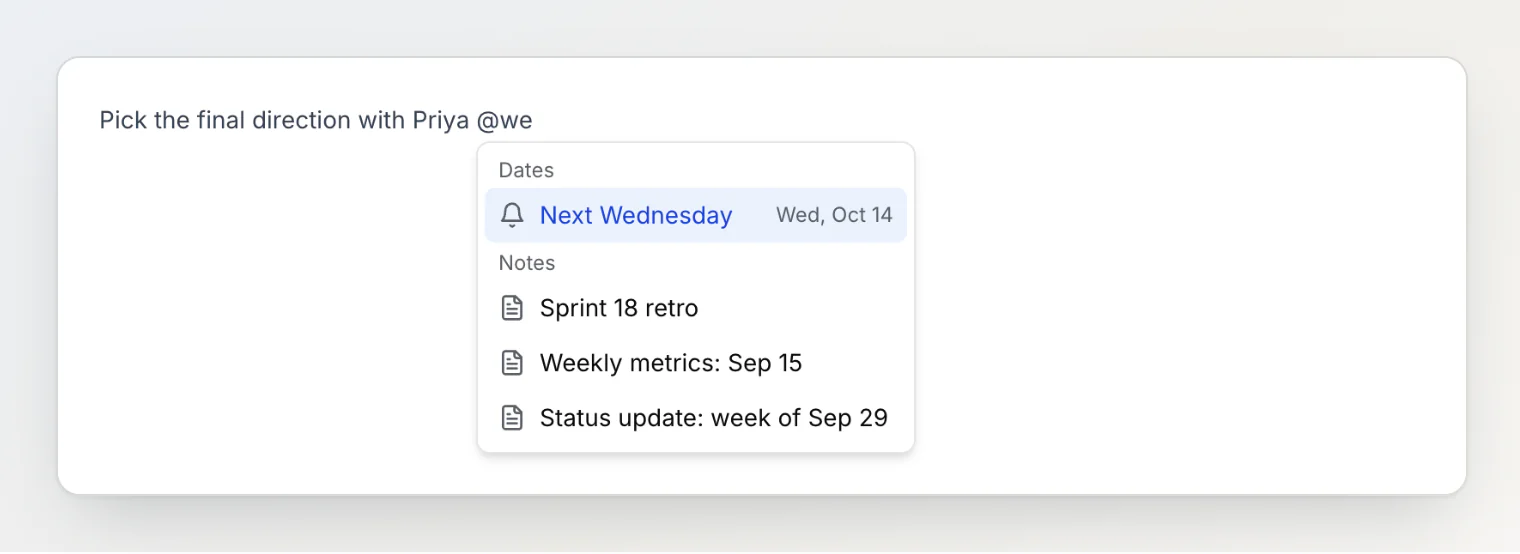
Click a reminder chip to change its day or time, make it repeat, or remove it. Reminder in the slash menu adds a reminder for tomorrow and opens it, as if you had clicked the chip. Deleting the chip deletes the reminder; undo brings it back, with the same people in a shared workspace. Notifications, repeats and the Calendar page are covered in Reminders and the calendar.
Linking notes
Type [[, or @, and pick a note to link it. Links are bidirectional, so backlinks appear automatically, and the Linked notes panel below each note shows the connections as a list or a graph.
Following a note link opens that note as a full page, even from inside the side panel — a link is a move to somewhere else, not the next item in a list.
Full details: Linking notes and backlinks.
Version history
Every note keeps 30 days of revisions, captured automatically as you write. Open the note menu → Version history to preview or restore an earlier version. Restoring saves your current note first, so it is itself reversible.
Full details: Version history.
Sub-notes
Any note can have children. Open the Child Notes section below a note and use its add button.
On the full note page, breadcrumbs at the top show the path back to the root, starting at Home. The side panel leaves them out — it shows the note's title instead, and the list you came from is still behind it.
Nesting also determines boards: a parent note's children become its board.
Font, text size, and page width
Three display settings change how notes read. They are remembered on this device.
Editor font — Default, Serif, or Mono.
Text size — Small, Default, or Large. Headings, code, and lists scale with the text.
Page layout — Full width, or Contained, which caps the width of every page: the notes list, Files, and Import as well as notes.
Set them in Settings → My settings, or from the note menu while you read, where each choice applies the moment you pick it.
The note menu
From the menu on an open note, in the panel or on the full page:
Version history
Copy as plain text
Copy link — the note's address,
https://notez.dev/notes/<id>. Anyone in the workspace can open it, and you can paste it into Claude, ChatGPT or AI chat to point them at this note. To share a note outside the workspace, use ShareShare, which reads Sharing settings once the note is public
Note details —
Created,Last modified, source, type,Words,Characters, tags, and any custom property valuesCover image — which image the note's card shows in grid and board view. See Choosing a note's cover image
Editor font, Text size, and Page layout — the same choices as in My settings
Move to trash — or, for a note already in the Bin, Restore and Delete permanently
Deleting from the side panel closes it and returns you to the list, with your filters and sort intact.
These are menu actions only. An open note claims no keys that could compete with typing: the side panel's J, K, and Esc all stand down while the cursor is in the title or the editor, and the full page has no shortcuts of its own at all.