The fastest note is the one you did not have to open anything to write.
Just start typing
On any app page, with nothing focused, start typing. Your letters go into search — because most of the time you are looking for something you already wrote.
If it turns out you are not, press ↵ — the Create note "..." suggestion is highlighted by default, so what you typed is saved as a new note. ⌘↵ does the same without the suggestions. Every capture shows a toast with Undo and Open.
This works everywhere except the note detail view and the CLI auth screen, where typing means something else.
Add a reminder, a mention or a note link with @
Type @ in the search box and a menu opens with Dates, People (in a shared workspace) and Notes. What you pick becomes a small chip next to the box, and the text you typed stays the title. Press ↵ and the note is created with the picks in its body: a reminder, a mention (the person gets a notification) or a link to the note you picked. Each chip has a ✕ to remove it before you save.
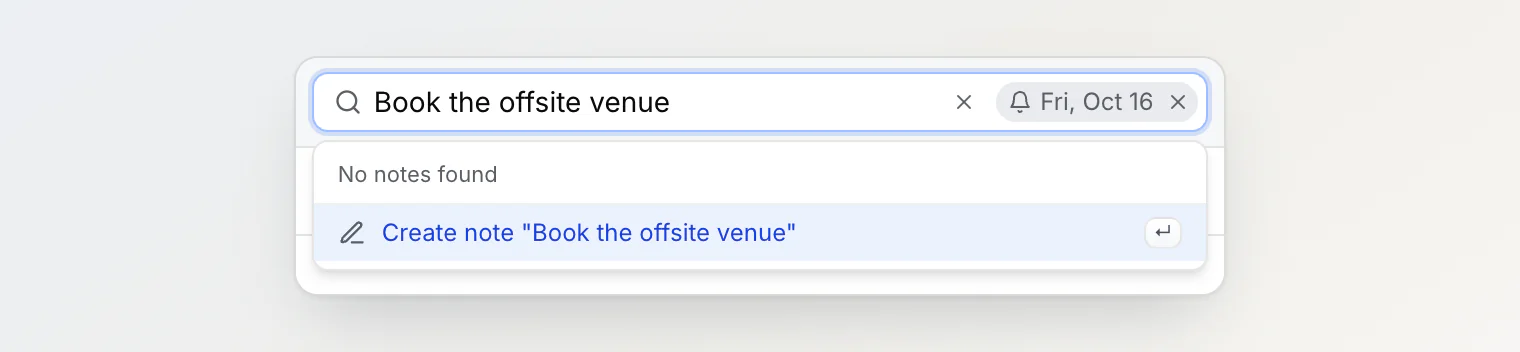
A date typed in full becomes a reminder even if you do not pick it from the menu: Call Anna @tomorrow-9am saves a note titled "Call Anna" with a reminder for tomorrow at 9:00, and @2026-12-24-18:30 sets an exact day and time. Words are joined with hyphens, because a space ends the @.
A board column's Add note box has the same menu; see Using boards. In the new note dialog, @ works as it does in any note. How a reminder notifies, repeats and shows on the calendar is in Reminders and the calendar.
Quick capture dialog
⌘E— new note from anywhere/— open the new note dialog⌘↵— save
Titles are generated from your first line. Anything longer than 80 characters is trimmed with an ellipsis. Give it an explicit title any time you like.
Images and files pasted into the dialog upload while you keep writing. If you save before an upload has finished, the note waits for it: Save reads Uploading files..., and the note is saved as soon as the file is in. Close the dialog instead and nothing is saved.
Paste from the clipboard
⌘V with nothing focused saves your clipboard as a note on the spot — no dialog:
Text becomes a note (a bare URL becomes a bookmark). An
@tomorrowin pasted text stays text and sets no reminderA link to one of your own notes — what Copy link in a note's menu gives you — opens that note instead of saving a bookmark of it
Files or images are uploaded and attached — up to 10 per paste; an image shows on the note's card
The toast has Undo and Open. Copy a screenshot, switch to Notez, press ⌘V — done.
To put a screenshot on a particular board column instead, paste it into that column's quick-add box. There the card is created when you press ↵, with the image as its cover. See Using boards.
Very long pastes (over 200,000 characters) open the new note dialog instead, with the full text, so nothing is ever trimmed silently.
URL bookmarks
Capture a note whose entire text is just a URL and Notez saves it as a bookmark note instead of a wall of text. You will see "Bookmark saved".
Bookmark notes:
Carry an amber Bookmark badge
Store the link, using the URL as the title until you rename it
Have an empty body you can write in — add why you saved it
Two things determine whether you get a bookmark:
The URL must be the whole captured text. A link inside a sentence stays an ordinary note.
It must start with
http://orhttps://. Pastingexample.comorwww.example.comcreates a normal text note, so copy the full address from your browser's address bar rather than retyping it.
There is no link preview. Notez does not fetch the page title, favicon, description, or a screenshot — nothing is ever requested from the site you bookmarked. You get a clean, private record of the link, not an unfurled card. If you want context, type it into the note body.
Where did this note come from?
Notes record where they were created and show it as a badge next to the title:
Badge | Meaning |
|---|---|
(none) | Created in the web app |
CLI | Captured from a terminal |
URL | Saved from a link |
MCP | Created by an AI assistant over MCP |
API | Created through the API |
AI | Created by in-app AI chat |
WH | Created by a webhook |
Telegram | Created via Telegram |
Import | Imported from another app |
Notes made in the web app carry no badge — the badge marks everything that arrived some other way. That makes it easy to spot what an assistant wrote versus what you wrote.
A note also records who created it. Ask AI chat "who added this note?" and it answers with the person, the date, and where the note came from.
Capturing from outside the app
The Notez CLI —
notez "your thought"from any terminalMCP — let Claude or Cursor write notes for you
Webhooks — let GitHub, Zapier, or a script create notes with an HTTP request
The address bar — open
notez.dev/with your text after it, such asnotez.dev/Call Anna @tomorrow-9am, and Notez saves "Call Anna" with a reminder for tomorrow at 9:00. If you are signed out, Notez asks you to sign in and then saves the note. These notes carry the URL badge
Keyboard summary
Shortcut | Action |
|---|---|
| New note |
| Open the new note dialog |
| Save the clipboard as a new note |
| Start searching |
| Create a note from the typed text (search box) |
| Save typed text as a note (without the suggestions) |
Full list: Keyboard shortcuts.