An export is a .zip with every note in the workspace as a Markdown file, plus the images and files the notes use. Tags, board columns and properties go at the top of each file, where Obsidian shows them as properties. The folder opens in Obsidian as a vault, and Notez can import it back.
Export a workspace
Switch to the workspace you want to export.
Open More at the bottom of the sidebar.
Click Import & export.
Switch to Export at the top of the page.
Click the Export button next to the workspace's name.
The page shows Exporting… with a progress bar, and you can leave it. When the export is ready, or has failed, a Workspace export notification appears in the bell, and by email if Email notifications is on. A workspace of 14 notes and 4 images took about 6 seconds.
Under Your export is ready, click Download.
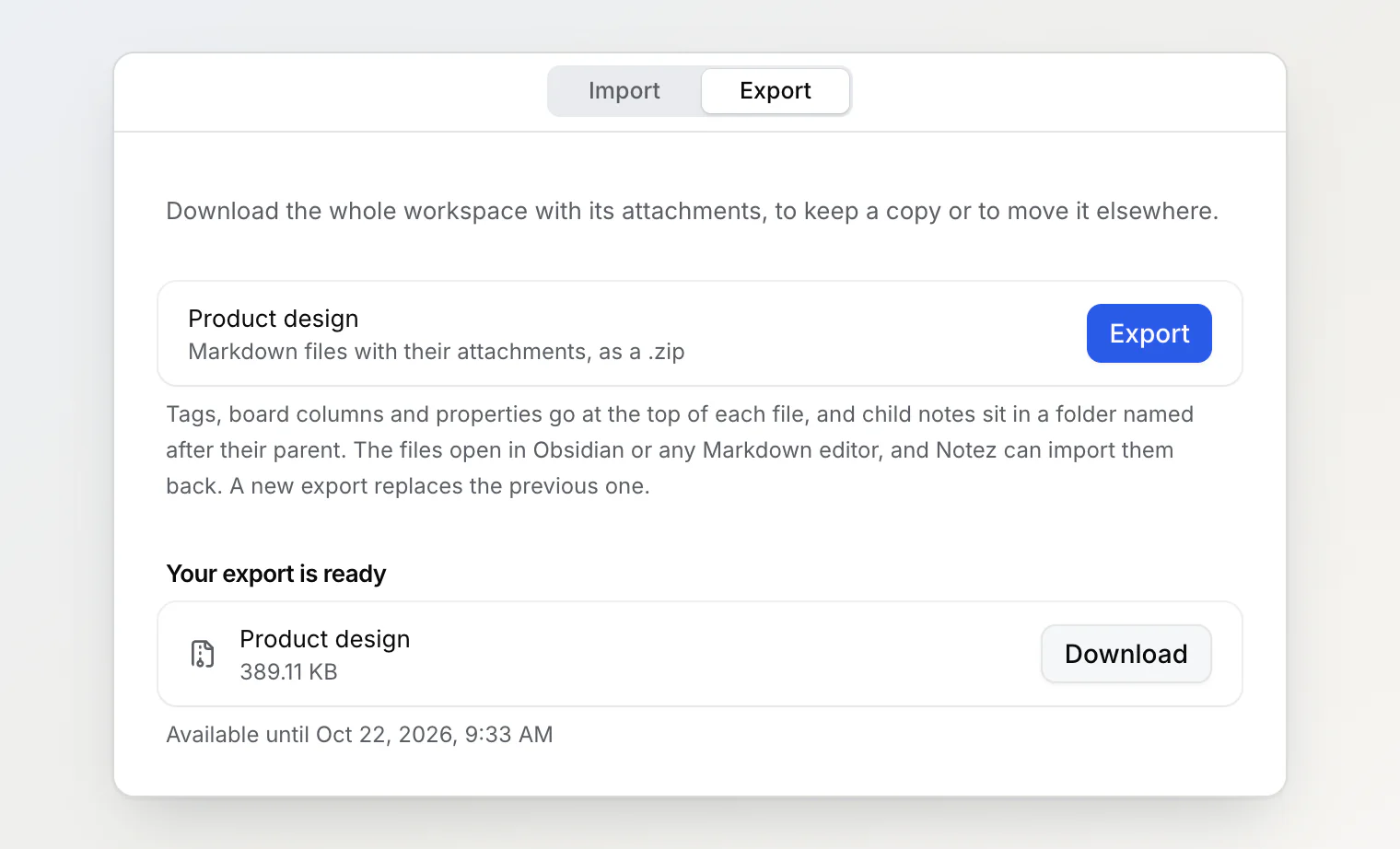
The file is named after the workspace and the day, such as Product design-2026-10-15.zip. The download works for 7 days, and Available until under it gives the last day. After that the page says This export has expired: click Export for a fresh one.
If a file couldn't be copied, the export says so, for example 2 files could not be copied, and the notes that use it link to a file that isn't in _attachments.
Anyone in the workspace can export it, not only the owner. An export belongs to whoever started it: other members don't see it. Each person has one export per workspace, and a new export replaces the previous one.
What is in the file
Product design/
├── Onboarding redesign v3 flow.md
├── Pricing page teardown.md
├── Sprint 18 retro.md
└── _attachments/
    ├── image-1.png
    └── image-1 (2).png
In Notez | In the export |
|---|---|
A note | A |
Sub-notes | Files in a folder with the parent note's name, next to its file |
Images and files in a note | Files in |
A link to another note | A Markdown link to its file; a link to a note in the Bin or in another workspace becomes its title as text |
A reminder that reminds you | Its date as a link, |
A reminder that doesn't remind you | Its date as text |
A mention |
|
Highlighted text |
|
Underline, text color, alignment | Dropped; the text stays |
Each file starts with a block of properties:
---
title: "Onboarding redesign: v3 flow"
created: 2026-10-02T14:32:02.419Z
updated: 2026-10-10T10:45:53.560Z
status: In progress
Priority: High
Due: 2026-10-16
Owner:
  - Lena Park
notez-id: b19bcd18-55c4-499d-9bc9-b73c61008b77
---titleappears when the file name differs from the title. File names drop characters that break files or Obsidian links (:/#[]and a few more become spaces) and stop at 60 characters.tagslists the note's tags,statusits board column, andpinned: truemarks a favorite.Custom properties follow under their own names. A member property lists names, never email addresses, and a relation property lists
[[links]]to the other notes.
The export leaves out the Bin, version history, AI chats, API keys, webhooks and calendar links.
Open it in Obsidian
Unzip the file and open the folder as a vault (Open folder as vault). Note links, images and properties work as they are.
Obsidian ignores tags that contain spaces. Notez writes them as they are, so
design reviewshows in the properties but not in Obsidian's tag list.On Windows, a path longer than 260 characters can fail to unzip. Very deep sub-notes can reach it; unzip closer to the root of the drive, such as
C:\export.
A large workspace comes in parts
Each .zip holds at most 2 GB or 60,000 files. A larger workspace comes as several downloads, labeled Product design, part 1 of 3 and so on. Every part has the same folder inside: unzip all of them into one place to get the whole workspace back. On a Mac, double-clicking each part makes Product design 2, Product design 3; move their contents into the first folder, or run unzip on each part in Terminal from the same folder.
Import it back
Import into a new or empty workspace: importing an export into the workspace it came from creates a second copy of every note.
Open Import at the top of the same page.
Under Source, choose Obsidian / Markdown.
Choose the
.zipand click Import.
The import brings back titles, sub-notes, note links, attachments, tags, creation dates and your reminders. Board columns, properties and favorites stay in the files' properties but don't come back into the app.
An import takes one .zip of up to 200 MB (25 MB on the Free plan), 10,000 files and 1 GB unzipped. A larger export goes back in pieces: zip a few top-level notes with their folders, plus _attachments with the files those notes use, in the same layout. Links between notes in different pieces come back as plain text. More in Import notes from Notion, Evernote or Obsidian.
If the export failed
Export failed shows the reason. Click Export again to start over. An export that runs longer than 3 hours stops with The export timed out.
Continue reading
Import notes from Notion, Evernote or Obsidian — bring notes in from other apps, or an export back.
Workspaces — what a workspace holds, and deleting one after you export it.
Custom properties — the properties that end up at the top of each file.