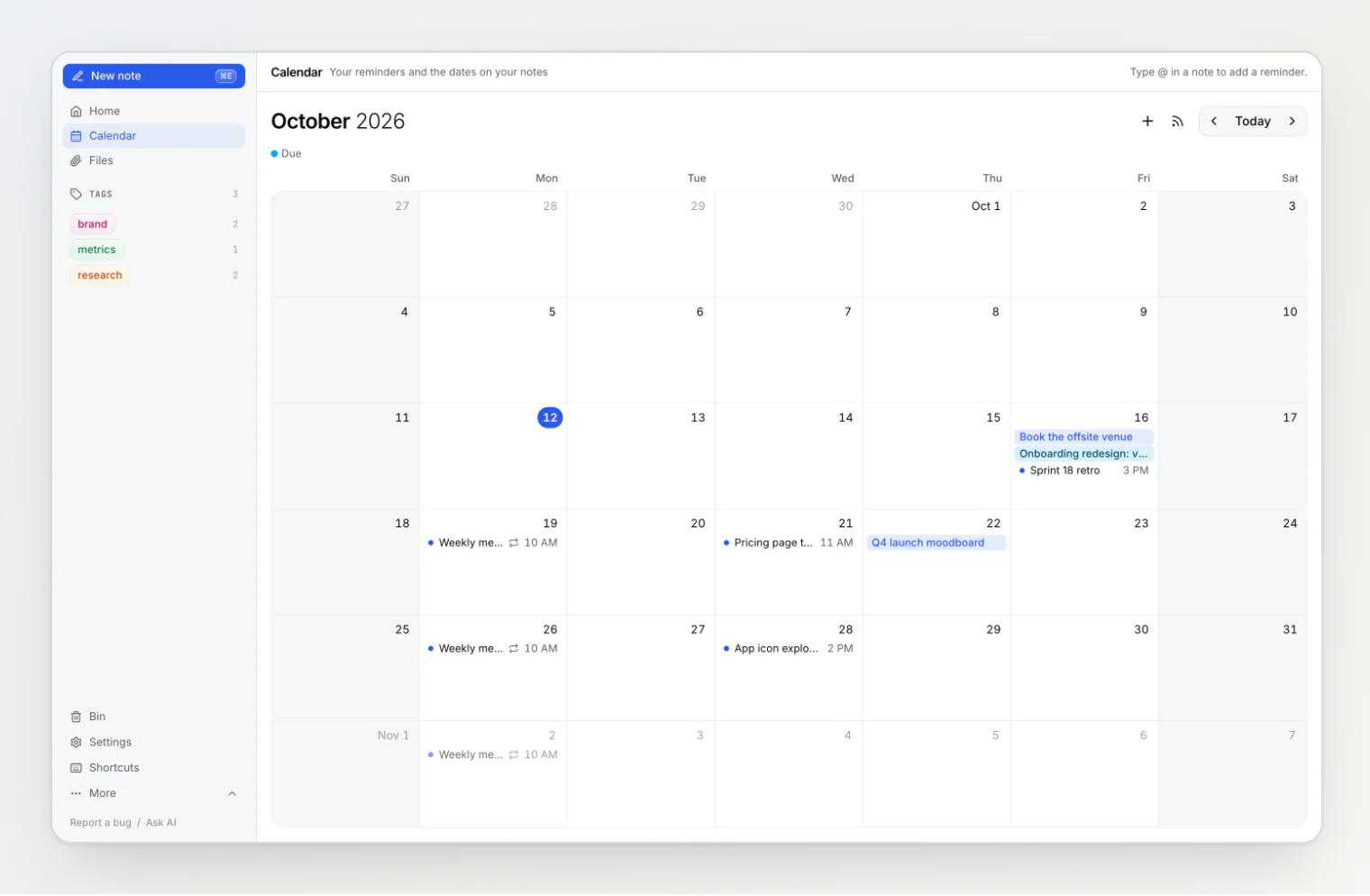
The sidebar runs down the left of every page in the app. It has three parts: a fixed top, a scrolling middle, and a fixed bottom, so the primary actions never leave the screen however many sections you turn on.
Top: New note, Home, Calendar and Files
New note (
⌘E) creates a note and opens it.Home returns to the notes list with no filter applied. The page heading still reads All notes.
Calendar shows a month of your reminders and the date property values in the workspace. See Reminders and the calendar.
Files opens the page listing the files attached to notes in this workspace.
Point at Home, Calendar or Files and a tooltip says what the page holds, such as "Your reminders and the dates on your notes" for Calendar.
Middle: sections
This is the only part that scrolls. It holds up to three kinds of section.
Favorites lists your starred notes and appears only while there is at least one. Click a row to open the note; hover it for a menu with Remove from favorites, Copy link, and Delete, plus a button that adds a sub-note.
Tags lists every tag with a count of the live notes carrying it. Click a tag to filter the list to it; click again to drop the filter. Hover a tag for its menu: pick a colour, Rename, or Delete tag. Tags is shown by default.
Property sections are the rest. Any select, multi-select, member, or relation property, and the built-in Board, can be shown here as its own section once Show in sidebar is switched on for it. Each row is one option, person, linked note, or column, with a count, and a click filters the list. Which types qualify and how the counts work is covered in Custom properties.
A Clear button appears in a section's header while that section holds an active filter.
The section menu
Hover any section header and a small settings button appears at its right. Its menu has two items:
Edit property opens the Custom properties dialog with this property already selected, so its options, colours, and Show in sidebar switch are one click away. For Tags and Board it opens their locked built-in pane.
Remove from sidebar hides the section. The property and its values are untouched; only its sidebar presence changes.
When the sidebar is empty
If every section has been removed, Tags included, and no other property is switched on, the middle of the sidebar is blank. Move the pointer over the sidebar and a Configure sidebar button appears in that space; it opens the Custom properties dialog, where any section can be switched back on. As soon as one section is showing, the button goes away.
Bottom
Bin shows deleted notes; click it again to return to the list.
Settings opens the workspace settings dialog on the Workspace tab.
Shortcuts opens the Shortcuts and commands dialog: the keyboard shortcuts, and what you can type in a note, the search box and the address bar.
More expands upward to reveal Import & export, Custom properties, and Integrations. It opens by itself on the Import and Export pages so the active entry is never hidden.
Collapsing and resizing
Drag the sidebar's right edge to resize it; the width is remembered. Keep dragging past its narrowest width and it folds into a narrow rail; drag the rail's edge back out and it reopens. The gesture reverses as often as you like before you let go. A click on the edge, or ⌘\, toggles it too.
The rail is still a working sidebar. It keeps New note, Home, Calendar, Files, Favorites, Filter, Bin, Settings, Shortcuts, and More, with each name in a tooltip. For Home, Calendar and Files the tooltip also says what the page holds. Filter opens your Tags and property sections in a popover, and shows a dot while one of them is filtering the list.
The full list of shortcuts is in Keyboard shortcuts. How tags, sections, boards, and favorites fit together is in Organizing notes.