Any set of notes can be viewed as a kanban board. Switch to Board view on the notes page.
Boards follow the note tree
There is no "create a board" step. A board is a view over notes you already have:
Top-level notes use the workspace board
A note's children form that note's own board
So opening a project note and switching to Board view gives you a board of its sub-notes automatically. Every project gets a board for free.
Creating columns
Two ways:
On the board — click Add column, type a name, click Add
Manage columns — a dialog listing every column, where you can add one with a name, and pick a colour once the name is typed
If you have no columns yet, the Manage columns dialog offers a Create default columns button for a standard set.
Columns are the options of the built-in Board property, which is why they work in filters and sorting like any other property. They can also be listed in the sidebar as one-click filters, each with a card count: open More → Custom properties, select Board, and switch on Show in sidebar.
Renaming, recolouring, reordering
Rename or recolour from the Manage columns dialog using the pencil button on a row, or from the … menu on a column header on the board. AI chat, or an assistant connected over MCP, can rename a column too.
Two columns on one board cannot share a name, ignoring case: a rename to a name another column already has is refused with a message, and the column keeps its old name.
Reorder by dragging: in the dialog, use the grip handle to drag vertically; on the board, drag the column header itself sideways.
Deleting a column
Deleting a column never deletes your notes. The confirmation says so:
Delete column? Cards in this column will become uncategorized. This action cannot be undone.
Those cards move to a No column bucket, which appears only while it holds cards. Drag them wherever they belong — but note that once you empty it, the bucket disappears, so move everything you need out in one pass.
Opening a card
A plain click opens the note in a side panel over the board. The board keeps its columns, scroll position, and card order behind it, which is the point — you can read a card and drop straight back into the board.
A short drag threshold keeps this out of the way of dragging: a click opens, a drag moves.
The panel's J and K step through the open card's column, top to bottom, so you can work down one column without closing the panel. Use Open in the card menu or the panel's Open full page button when you want the whole page.
Moving cards
Drag a card to another column.
Select several cards and drag them together — the drag shows a badge with the count
Marquee select by dragging on empty board background
⌘-click a card to add it to the selection rather than opening itThe board auto-scrolls when you drag near an edge
Card moves show no confirmation toast — they are far too frequent to justify one. If you drop a card in the wrong column, press ⌘Z.
One limit: ⌘Z undoes moves between columns, but not reordering within a column. If you shuffle a card up or down in the same column, drag it back manually. See Undo and the Bin.
Quick-add cards
Hover a column header and click + (tooltip: Add note) to add a card at the top; there is also an add control at the bottom of each column.
Key | Action |
|---|---|
| Save the card |
| New line |
| Paste images or files into the card |
| Cancel, discarding the text and anything pasted |
Clicking away with text or pasted files still in the box saves it rather than discarding your work.
On a board scoped to a parent note, new cards are created as children of that note. On the workspace board, they are created as top-level notes.
Adding a reminder, a mention or a note link
Type @ in the quick-add box for the same menu as in a note, without Pick a date…: Dates, People (in a shared workspace) and Notes. A pick becomes a small chip under the box, and your text stays the title. Press ↵ and the card is created with the reminder, mention or note link in its body. While the menu is open, ↵ picks the highlighted row instead of saving, and Esc closes the menu without cancelling the card.
A date typed in full becomes a reminder even if you do not pick it: Review the launch copy @tomorrow-9am creates a card titled "Review the launch copy" with a reminder for tomorrow at 9:00. A card with a picked date and no text is created untitled, holding only the reminder. See Reminders and the calendar.
Pasting images and files
Copy a screenshot or a file, click into the quick-add box, and press ⌘V. The upload starts straight away, and the first image appears above the title as the card's cover, dimmed until it has uploaded. A small paperclip with a number counts anything else you pasted.
Nothing is created until you press ↵. If an upload is still running, the card waits for it and is then created, so a card is never saved half-uploaded.
The title is whatever you typed. Leave it empty for an image-only card.
The files go into the note body in the order you pasted them: images inline, other files as file chips. The first image becomes the card's cover.
Plain text pastes into the title as usual.
Pasted files follow the same formats and size limits as the editor. See Files and attachments.
What cards show
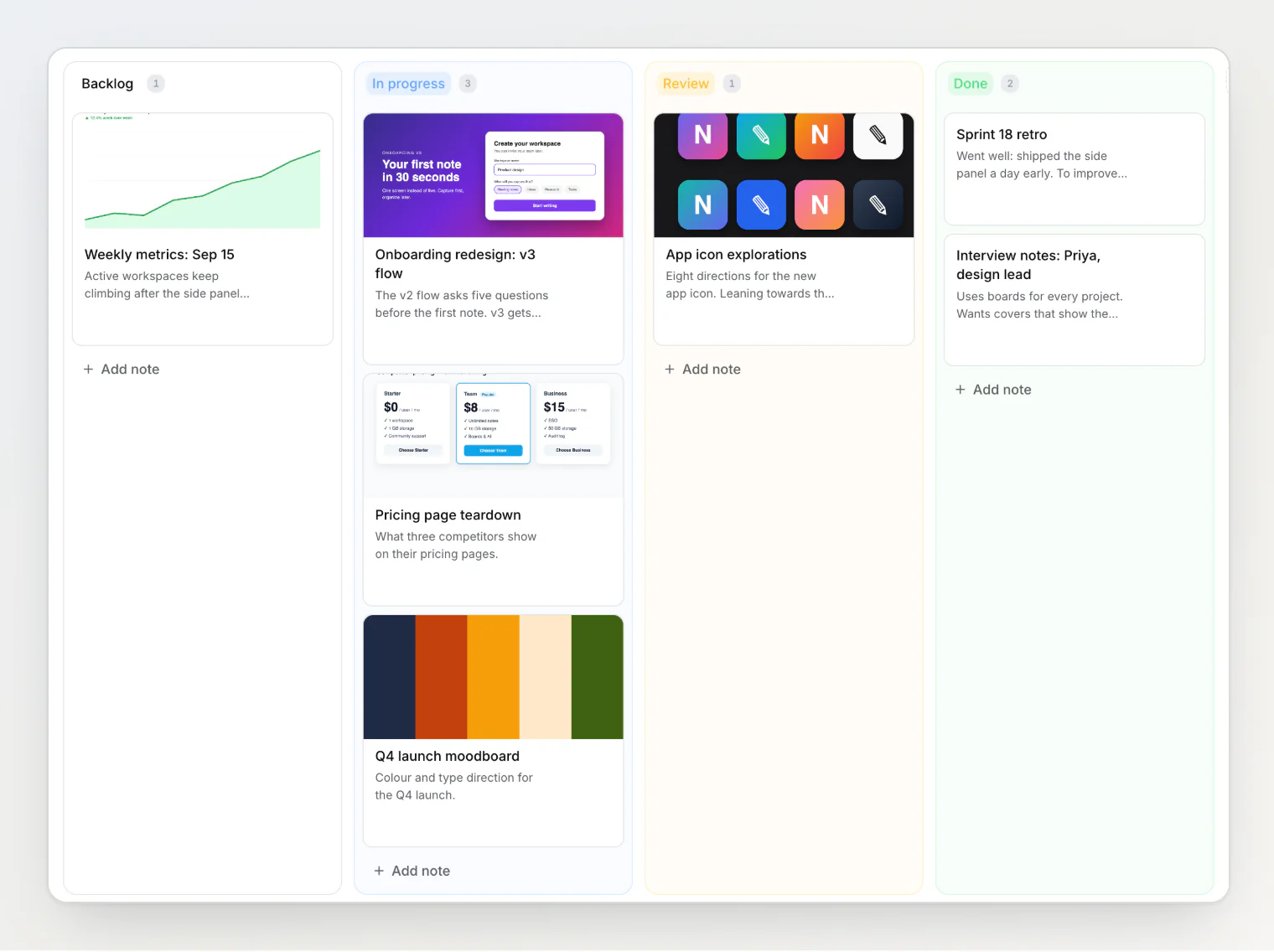
The note title, editable inline via the pencil button. While you edit it,
⌘Vpastes images and files the same way the quick-add box does — cover, paperclip count, saved on↵— and adds them to the end of the existing note;Escdiscards them along with the title changeA cover image — the first image in the note unless you choose another one, or none, with Cover image in the card menu. Notes without images get no cover. See Choosing a note's cover image.
An amber Bookmark badge on bookmark notes
A source badge at the start of the title for notes that came from the CLI, MCP, the API, AI chat, or an import. Notes created in the app carry no badge.
The pencil and ⋯ buttons appear over the card's top-right corner when you hover it, so the rest of the time the title and preview use the card's full width. The card menu offers Open, Copy link, Add to favorites / Remove from favorites, Share, Note details, Cover image, and Delete. On a board scoped to a parent note, it also offers Detach from parent.
Asking AI about a board
The cards on a board are what Notez treats as your tasks — there is no separate to-do entity. With a board open, AI chat can see it, so "what are my tasks today?", "what is in progress?", and "what did I finish this week?" are answered from the board in front of you rather than from a search. A column whose name means finished — Done, Completed, Archived — is left out of what is pending, and chat says which one it left out.
Select cards and the selection bar offers Ask AI, which opens chat pointed at exactly those cards. Chat can also build a board for you: "set up a board for Project Apollo with Backlog, Doing, and Done, and put these notes on it."
See Using AI chat.
Column counts and loading
Each column shows a card count next to its name. Columns load 20 cards at a time and fetch more automatically as you scroll — there is no button to click.
There are no WIP limits — counts are shown but never enforced.
The Bin is not a board
The Bin is always a flat list; Board view is disabled there. See Undo and the Bin.