Active sessions
Settings → Security lists every device signed in to your account: "Each time you login on new device a new session is created."
For each session you see the IP, when it signed in, and the detected browser, OS, and device type. Your current session is marked current.
Actions:
End session on any single row
End other sessions — signs out everywhere except here
End all sessions — signs out everywhere, including this device
If you have used a shared or public computer, End other sessions is the fastest way to be sure.
Note that changing your password does not automatically end other sessions — use End other sessions explicitly if that is what you want.
Connected apps
Connected apps, below your sessions, lists every AI app you have connected to your account by signing in, such as Claude, ChatGPT or VS Code. Each one shows its name, a Read and write or Read only badge, and the date it was connected. The Manage connected apps button in Settings → Integrations → Notez MCP server opens this list too.
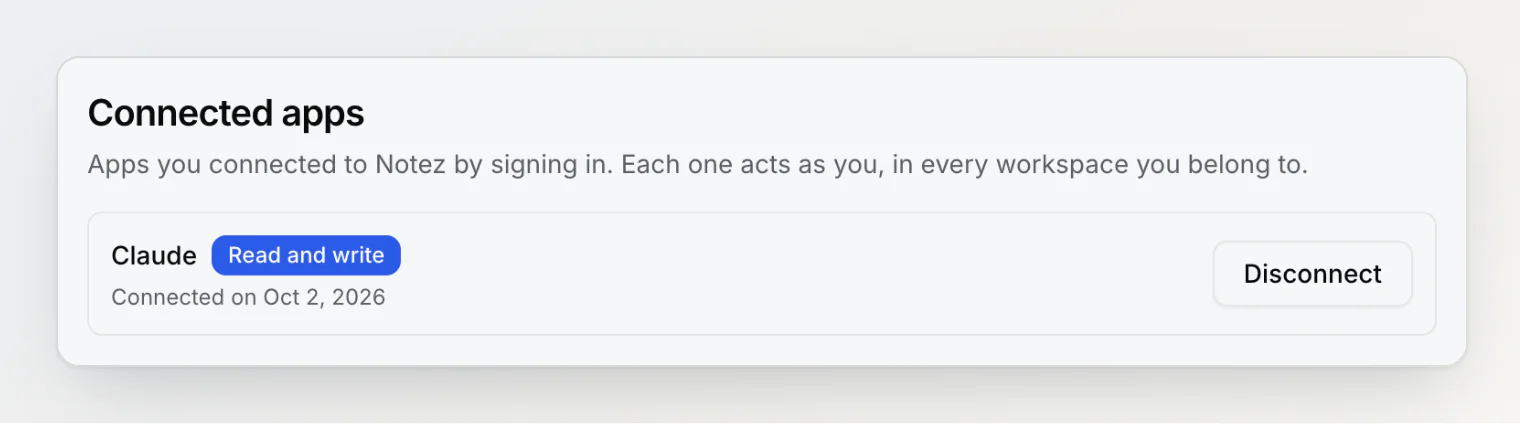
Disconnect cuts an app off at once. After you confirm, its next request fails and it cannot renew its access. You can connect it again at any time. To move an app between Read only and Read and write, disconnect it and connect again.
Changing or resetting your password disconnects every connected app. Signing out does not, so use Disconnect when you want an app gone.
To connect an app, see Connect Claude, ChatGPT or VS Code.
Changing your password
Settings → Security offers Request password reset, which emails you a reset link rather than asking for your old password inline. Reset emails are limited to 3 every 5 minutes per address, so check spam before requesting another.
The sign-up and reset forms require at least 8 characters.
Once your new password is set, every connected app is disconnected and has to be connected again.
API keys and webhook URLs
Three kinds of credential, all in Settings → Integrations:
CLI keys — created by
notez loginMCP keys — created with Generate MCP Key
Webhook URLs — each webhook has its own secret URL
All are bound to a single workspace and grant access to that workspace only. An AI app you connect by signing in uses none of them: it acts as you, in every workspace you belong to, and is listed under Connected apps instead.
A CLI key is narrower still: it can only capture notes and upload files, the two things the CLI does. It cannot read, change or delete a note, list anything, or manage keys, so a stolen CLI key can add notes to its workspace and nothing more.
Notez stores none of them in readable form: it keeps a hash, which is enough to recognize a key but not to recover it. That is why a key or a webhook URL is shown once, when it is created, and afterwards only its first few characters. If you lose one, rotate it rather than looking for it.
A webhook can also verify a signature from the service that calls it. That signing secret is the one credential Notez must be able to read back, to recompute each signature, so it is encrypted rather than hashed. Notez never writes either kind of secret to its own logs or to the audit trail. A webhook URL can still end up in the logs of whatever sits between the sender and Notez, which is why the token can also be sent in an Authorization: Bearer header instead.
Treat them like passwords. A token is shown once, then lives in a config file on your machine. Rotate MCP key immediately invalidates the old token — do this if a key is ever committed to a repository or pasted somewhere public. For the CLI, notez logout on that machine, or revoke the key here.
Keeping work and personal notes in separate workspaces is the strongest control available: a key scoped to one genuinely cannot read the other, enforced server-side on every call. An app you connect by signing in is not limited that way: it reaches every workspace you belong to. If an assistant should see only one workspace, give it a key.
Calendar links
The private link on the Calendar page lets Google Calendar, Apple Calendar or Outlook read the reminders that remind you and the dates in one workspace. It cannot change anything. Each event carries the note's title and a link to the note, and the calendar is named after the workspace. Note text is not in it.
The link is its own credential: anyone who has it can read those events. It can also end up in the logs of whatever sits between the calendar app and Notez, because Google Calendar and Outlook can only fetch a plain address. Notez's own logs name the link by an id, never by its address.
Unlike keys and webhook URLs, the link is not stored as a hash. Notez keeps it readable, so the Calendar page can show it again whenever you add the calendar on another device. Changing your password or ending sessions leaves it working. To revoke it, turn Private calendar link off; turning it on again creates a new link. Leaving a workspace, or being removed from it, deletes your link for it. See Reminders and the calendar.
Sign-in methods
On the web you can sign in with email and password, Google, or Apple, or continue as guest. If you signed up with a social provider, there is no password on the account — use that provider's button.
Notez does not currently support two-factor authentication. There is no TOTP, SMS, backup codes, or passkey support. If your account matters to you, the practical step is to sign in with Google or Apple and enable 2FA there, so your identity provider carries that protection.
Share links
A public share link has no password and no expiry. Anyone holding it can read that note, and a link posted somewhere crawlable can be indexed by search engines.
Toggling sharing off invalidates the link permanently. Re-sharing later mints a new URL, so an old link never starts working again.
Never share a note containing credentials or personal data.
How your notes are stored
Being straightforward, because this decides whether Notez suits your threat model:
Notes are stored in a managed database; files in S3-backed object storage. Images and files in notes are served from a CDN at unguessable addresses — nothing lists them, but anyone with an exact address can open that file.
Access is scoped to your account and workspace, and enforced server-side.
Notes are not end-to-end encrypted, and there is no application-layer encryption of note content. Notez is not a zero-knowledge product — content is encrypted in transit and protected by the storage layer, but it is not encrypted with a key only you hold.
If you need zero-knowledge storage for a specific category of secrets, keep those in a dedicated tool. For ordinary notes, thinking, and work, standard protections apply.
AI and your notes
AI chat only reaches notes in the current workspace
MCP keys only reach the workspace they are bound to
Connected apps reach every workspace you belong to, with the access you chose: Read and write or Read only
Note content is sent to the AI provider to answer your questions and to build the embeddings that power semantic search
Conversations are deleted after 90 days
If a workspace holds material you would rather not send to an AI provider, avoid AI chat there — indexing is what powers semantic search across it.
Rate limits
Action | Limit |
|---|---|
AI chat requests | 10 per minute |
Requests to one webhook | 60 per minute |
Requests to one calendar link | 30 per minute |
Turning the calendar link on or off | 20 per hour |
Verification emails | 3 per 5 minutes |
Password reset emails | 3 per 5 minutes |
Reporting a shared note | 5 per hour |
Deleting your account
Settings → Delete account permanently removes your notes, files, and workspaces. To keep a copy, export each workspace and download the .zip first: your exports are deleted with your account.
Data retention
Item | Retained |
|---|---|
Deleted notes (Bin) | 30 days |
Note versions | 30 days |
AI conversations | 90 days |
Unattached uploads | 3 days |